A Step‑by‑Step Guide
In our previous article, Tailscale IoT VPN, we explored why it is transforming industrial remote access—eliminating complex VPN configurations, automatic NAT traversal, and identity‑based zero‑trust security for distributed IoT fleets. Now it is time to get practical. This tutorial walks you through installing and configuring Tailscale on Bivocom gateways running Ubuntu. We use the TG465 as the primary example, but the same steps apply to the TG452, TG462, and other Ubuntu‑based Bivocom gateways. By the end of this guide, you will have a secure, zero‑trust connection to your gateway—and to every device behind it.
Prerequisites
Before you start, confirm you have these items ready to avoid mid-process delays:
- A Bivocom gateway (TG465, TG452, or TG462) with Ubuntu pre‑installed.
- Internet access on the gateway (via Ethernet, 4G/5G cellular, or Wi‑Fi)
- SSH or Telnet access to the gateway
- A Tailscale account (sign up free at tailscale.com)
Note: This guide applies to Bivocom gateways running Ubuntu. If you need to run Tailscale on an OpenWRT system, please contact Bivocom for further discussion.
Step 1: Sign In to Your Tailscale Account
First, set up your central management workspace. The admin console is where you monitor devices, approve routes, and enforce access policies across your entire tailnet.
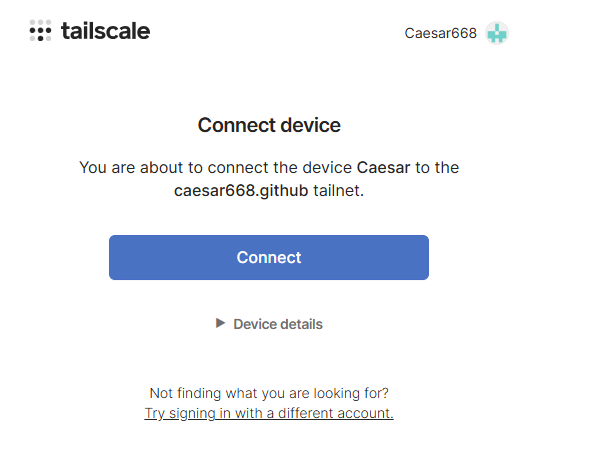
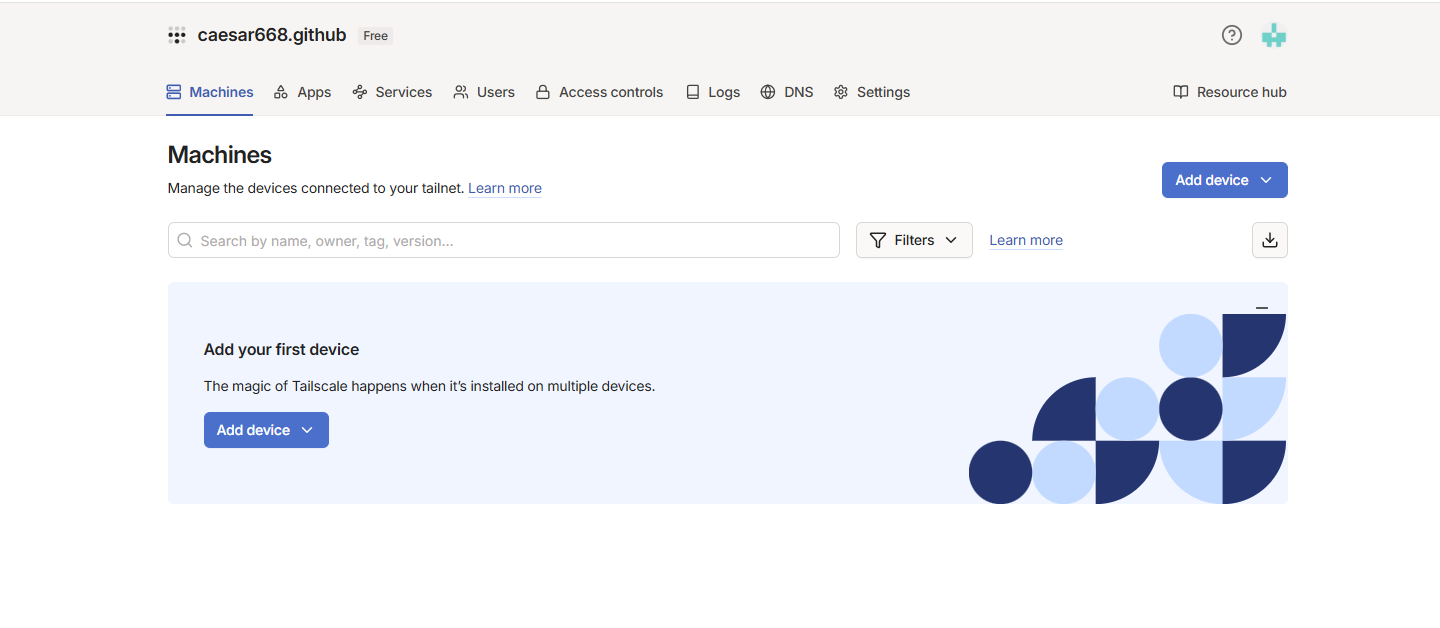
First, open your browser and navigate to the Tailscale admin console. Sign in with your email address. If this is your first time, you will need to create an account. Once logged in, you will see the Machines page—currently empty, but it will soon display your Bivocom gateway once it is connected.
Step 2: Connect Your Gateway to the Internet
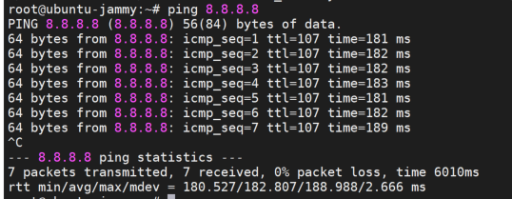
Tailscale requires outbound internet access to reach the coordination server. Always confirm network health before installation to avoid troubleshooting later. TG465 supports multiple connection methods—cellular, wired Ethernet, and Wi‑Fi. In this guide, we use a wired Ethernet connection.
Verify connectivity by pinging a public address from the gateway’s command line: ping 8.8.8.8 . If you receive replies, your gateway is online and ready for the next step.
Step 3: Install Tailscale on the Gateway
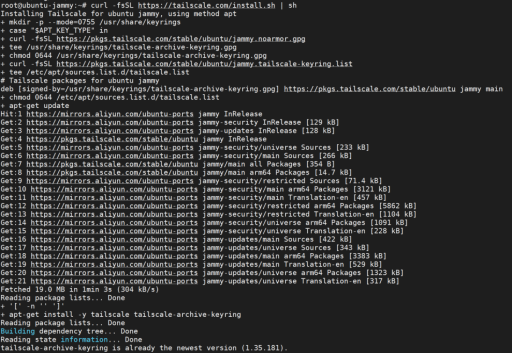
Tailscale provides a one‑line installation script for Linux systems. Log into your gateway via SSH or Telnet, then run: curl -fsSL https://tailscale.com/install.sh | sh .
The script automatically detects your system, adds the Tailscale package repository, and installs the Tailscale client. The entire process takes less than a minute.
Step 4: Authenticate and Start Tailscale
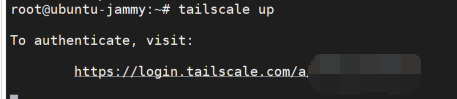
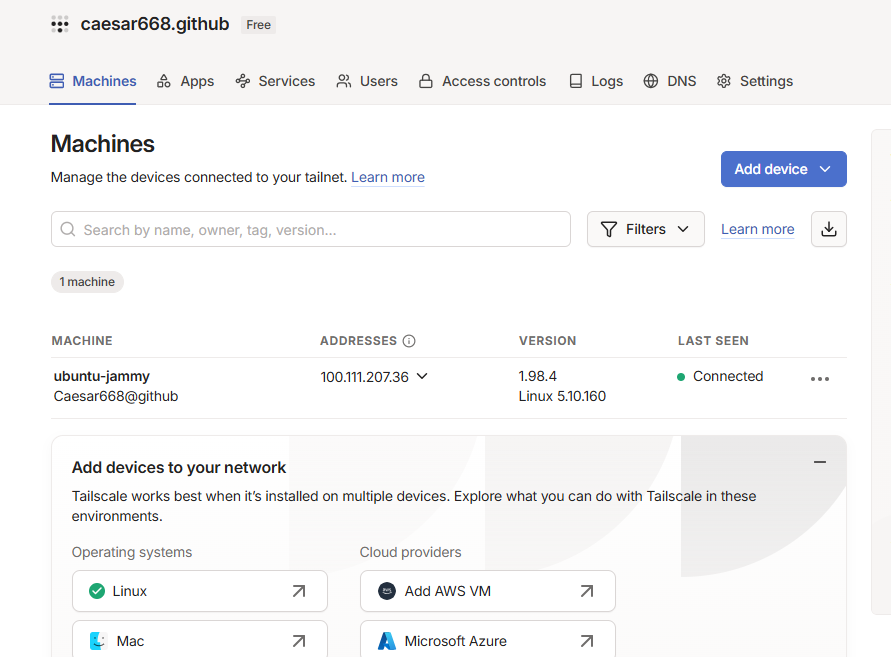
Once installation completes, bring up Tailscale and authenticate the device: tailscale up . The command prints a URL, for example: https://login.tailscale.com/a/xxxxx . After you authorize the device in your browser, the gateway joins your tailnet. Return to the Tailscale admin console’s Machines page—you will see the gateway listed as an online device.
Important: The URL is unique to your device. Do not share it.
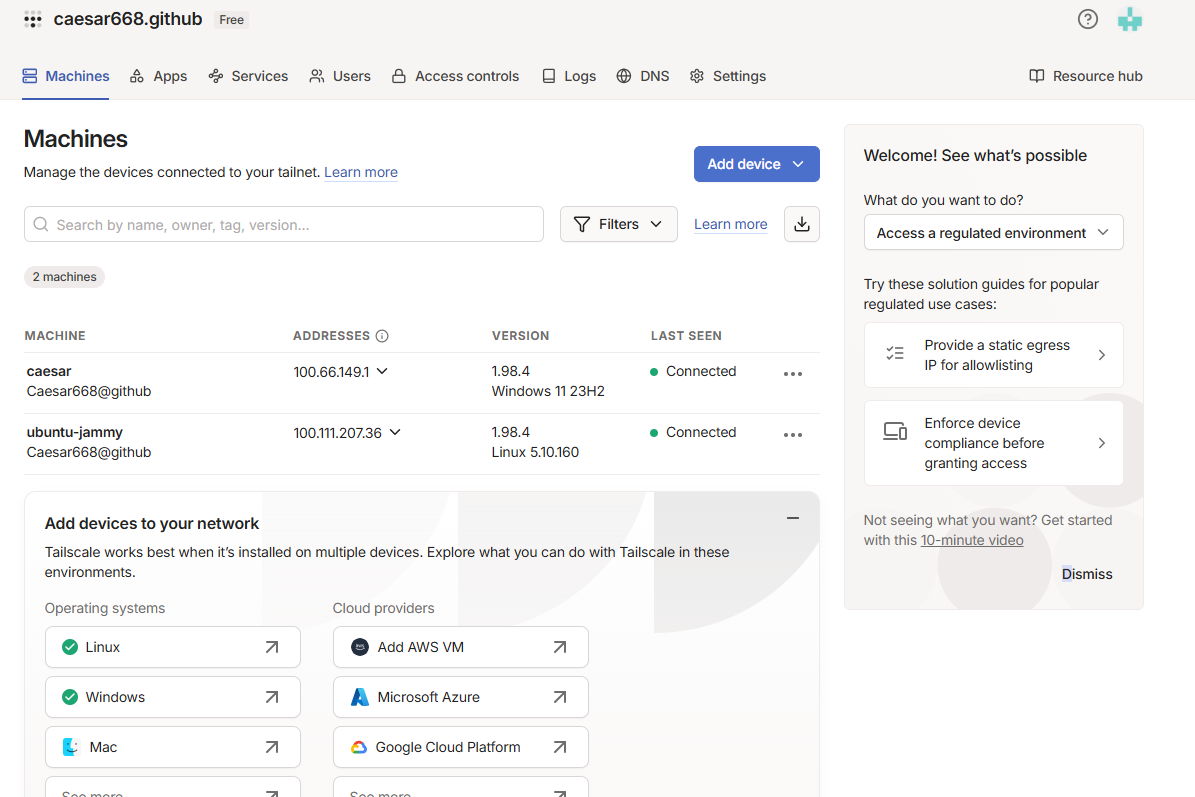
Note: To install Tailscale on Windows, download it from tailscale . After installation, sign in with your Tailscale account to authenticate the Windows machine.
Once both devices are authenticated, the admin console shows them online.
Step 5: Test Connectivity
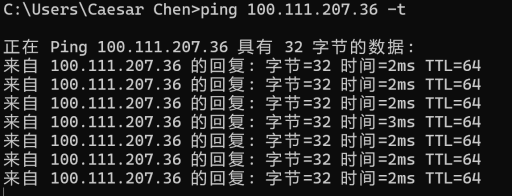
From a Windows Command Prompt, ping the Tailscale IP (the 100.x.y.z “tunnel” address) of the TG465:
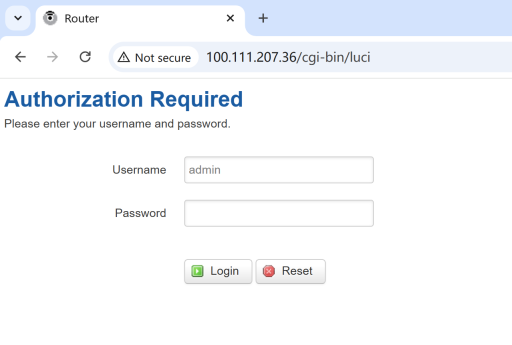
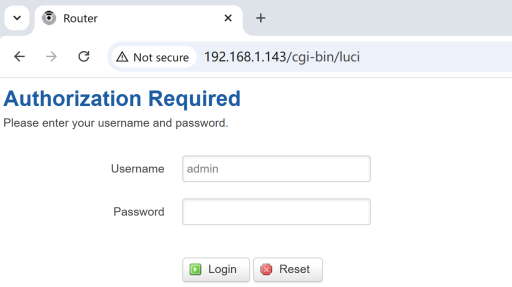
You can also access the TG465 web interface using its Tailscale IP in a browser:
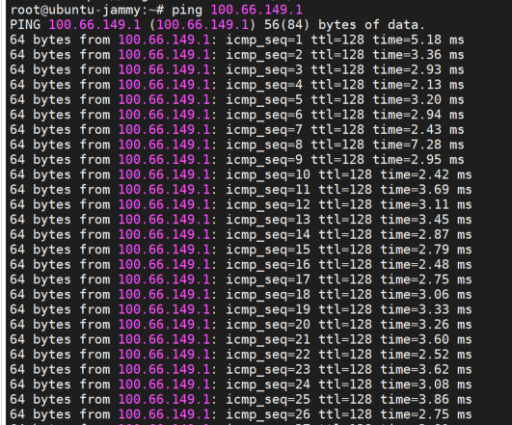
From the TG465, ping the Windows PC’s Tailscale IP:
Step 6: Configure Subnet Routing (Optional)
Most industrial deployments require access to downstream devices that cannot run Tailscale themselves — PLCs, sensors, meters, and IP cameras. The subnet router feature solves this, which we introduced as a core IoT capability in our blog — Tailscale IoT VPN.
Configure Your Gateway as a Subnet Router
On the gateway, enable IPv4 and IPv6 forwarding:
echo 'net.ipv4.ip_forward = 1' | sudo tee -a /etc/sysctl.d/99-tailscale.conf
cho 'net.ipv6.conf.all.forwarding = 1' | sudo tee -a /etc/sysctl.d/99-tailscale.conf

sudo sysctl -p /etc/sysctl.d/99-tailscale.confe
sudo sysctl -p /etc/sysctl.d/99-tailscale.conf
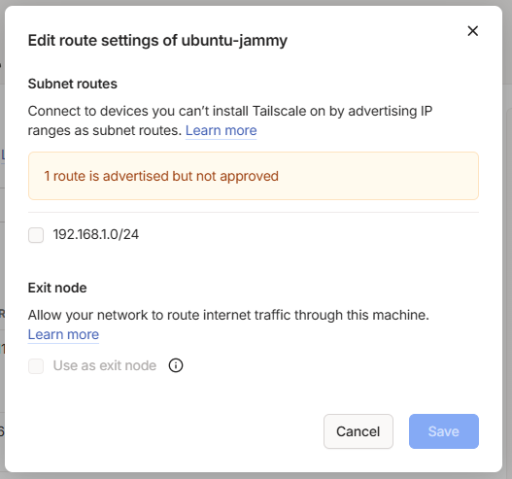
Then, advertise the local subnet to the Tailscale control plane: sudo tailscale set --advertise-routes=192.168.1.0/24
Approve the Routes in the Admin Console
After advertising the routes, open the Tailscale admin console. Navigate to the Machines page, find your gateway, and click the … menu. Select Edit route settings and approve the advertised routes.
Once approved, any device in your tailnet can access any device on the gateway’s local subnet. From your laptop, you can now ping a PLC at 192.168.1.100 or access a camera’s web interface—all through the secure Tailscale tunnel.
Next Steps
Installing Tailscale IoT VPN on a Bivocom gateway takes minutes—not hours. The result is a secure, zero‑trust connection that works anywhere, without public IPs, without port forwarding, and without complex VPN configurations. Whether you are managing a single remote pumping station or a global fleet of industrial gateways, Tailscale on Bivocom hardware delivers the reliable, low‑latency remote access your team needs.
Once you have Tailscale IoT VPN running on a single gateway, scaling to hundreds or thousands of devices is straightforward:
- Enable MagicDNS – Access gateways by name (
gateway-1.tailnet-name.ts.net) instead of IPs. - Define ACL policies – Restrict access by user role and device type. For example, allow field engineers to SSH to gateways while limiting developers to web UI only.
- Automate installation – Include Tailscale in your gateway provisioning workflow for zero‑touch deployment across hundreds or thousands of units.
- Integrate with monitoring – Export Tailscale connection logs to your SIEM for security auditing.
- Consider Headscale – For strict data sovereignty requirements, self‑host the control plane while keeping all subnet routing and ACL capabilities.
-on-Bivocom-TG465-IoT-Edge-AI-Gateway-with-Ubuntu-768x512.png "Install Ollama & Llama (LLM, large language model)) on Bivocom TG465 IoT Edge AI Gateway with Ubuntu")



Comment