One File. One Tunnel. Done.
At Bivocom, we offer several resources to help you secure IoT connectivity. Our industrial products support OpenVPN in both client and server modes, and the latest firmware includes an Auto‑mode that accepts complete .ovpn configuration files—no manual certificate, key, or cipher setup required. For protocol selection, read VPN IoT Security: OpenVPN vs IPsec; for full server‑client deployment, see How to Setup OpenVPN on Bivocom IoT Router & Gateway. This guide covers our simplest, fastest client‑side method: connecting through an .ovpn file for hassle‑free, stable VPN links.

Prerequisites You Need
- OpenVPN configuration file: A valid .ovpn file from your OpenVPN server, including embedded certificates and keys.
- Supported Bivocom hardware: TR321, TR323, TR341, TG451, TG453, TG463, TG452, TG462/TG462S
- Firmware requirement: Older firmware versions (below .27 / .16) do not support .ovpn file upload. Upgrade first if needed.
- Core background: This setup uses OpenVPN 2.5.3 (backward compatible). Extremely new server versions may cause compatibility or connection issues.
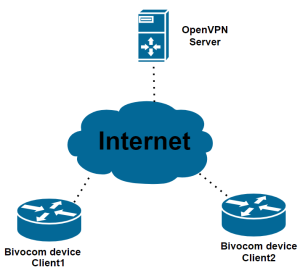
Step-by-Step: Connect OpenVPN through File
Follow these clear steps to set up the OpenVPN .ovpn file connection in minutes.
Step 1: Prepare WAN Connection
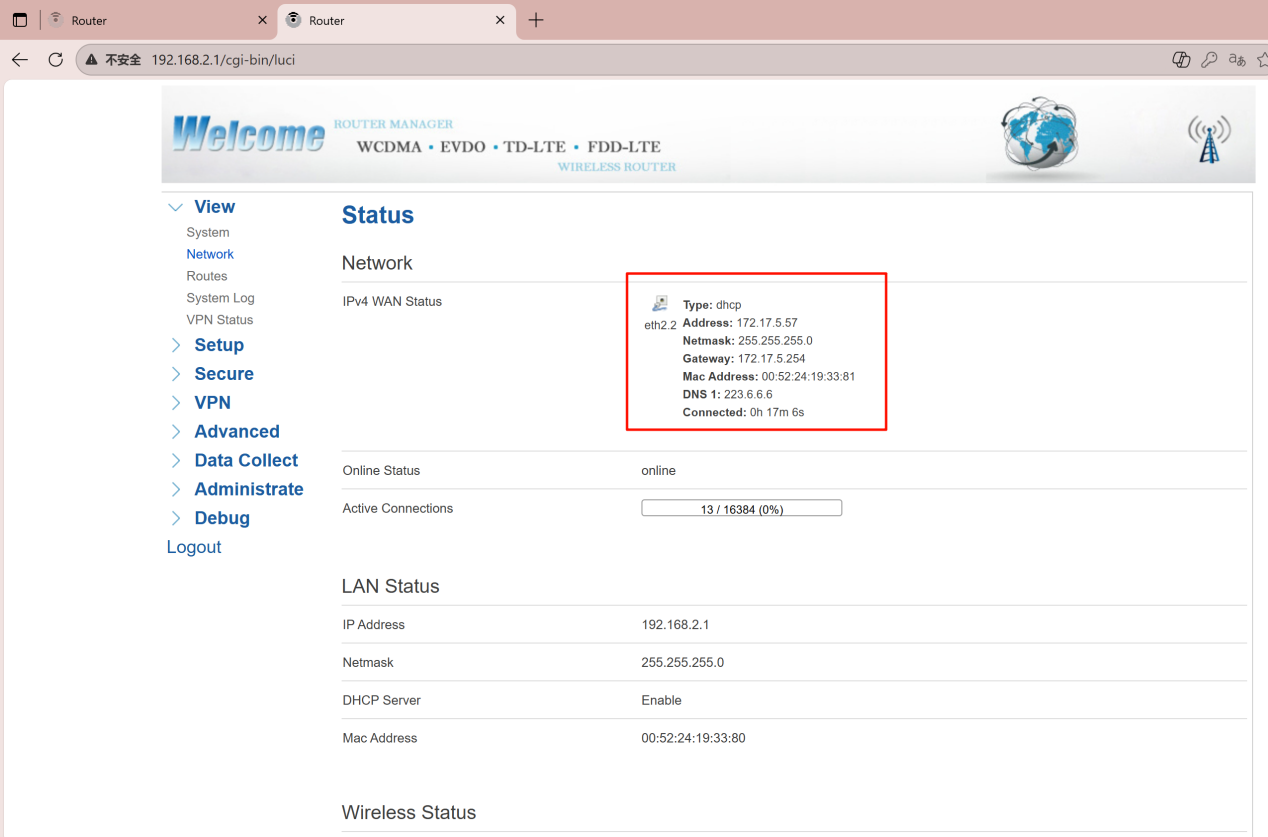
The OpenVPN server is set the public network, so we first need connect the WAN IP for the device, andconfigure the client1 to test the VPN
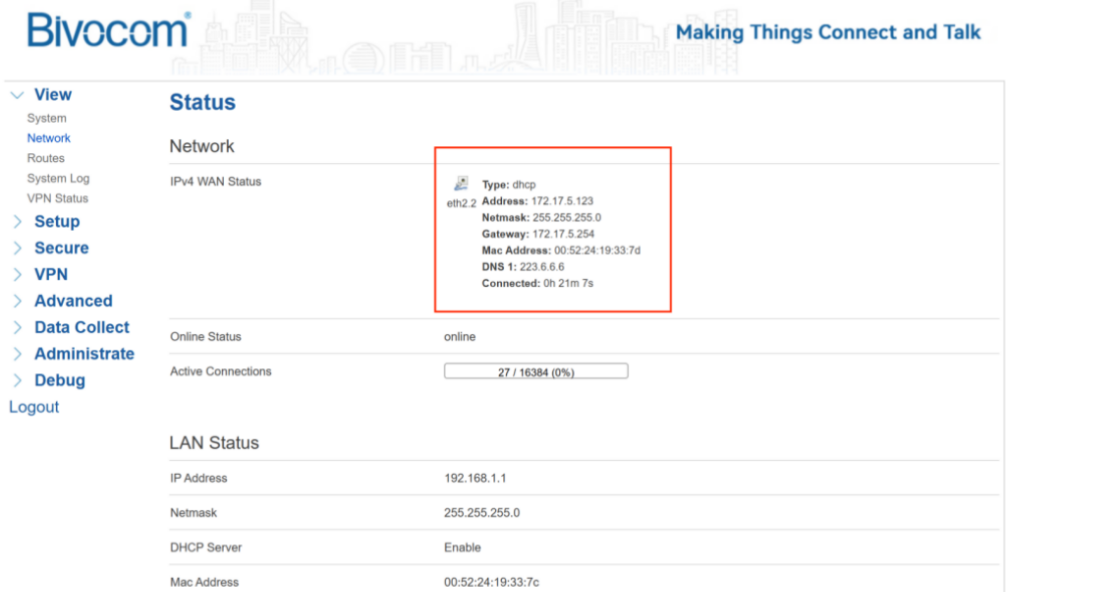
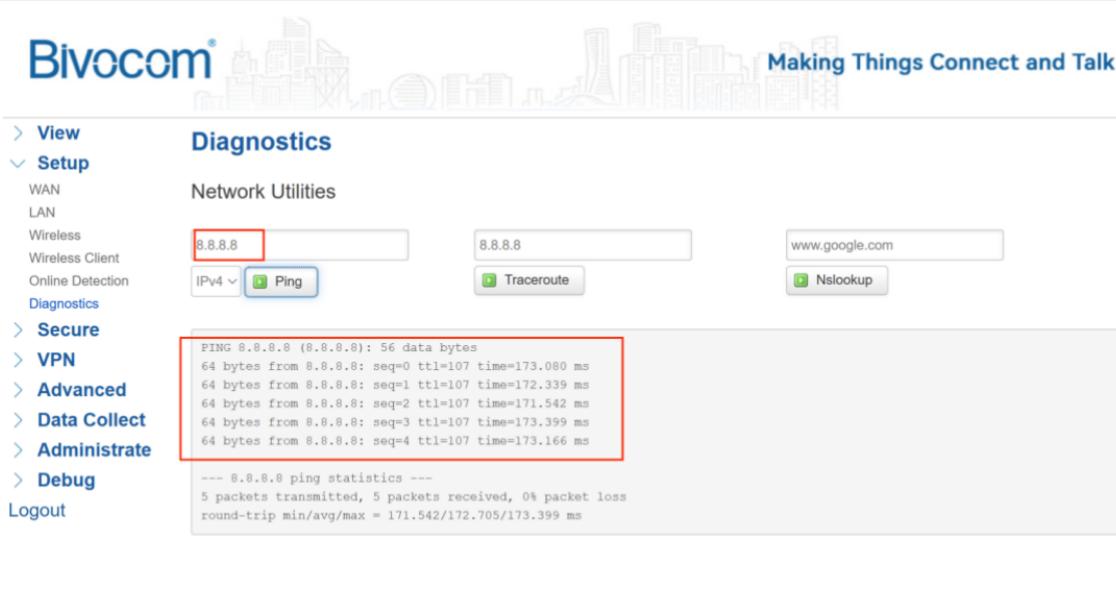
Log into your Bivocom router’s web UI. Go to View > Network and verify the IPv4 WAN status. Confirm the device has a valid IP address, gateway, and DNS. Run a ping test to an external IP (e.g., 8.8.8.8). A successful reply means your WAN link is ready for OpenVPN.
Step 2: Upload the Ovpn File in Auto Mode
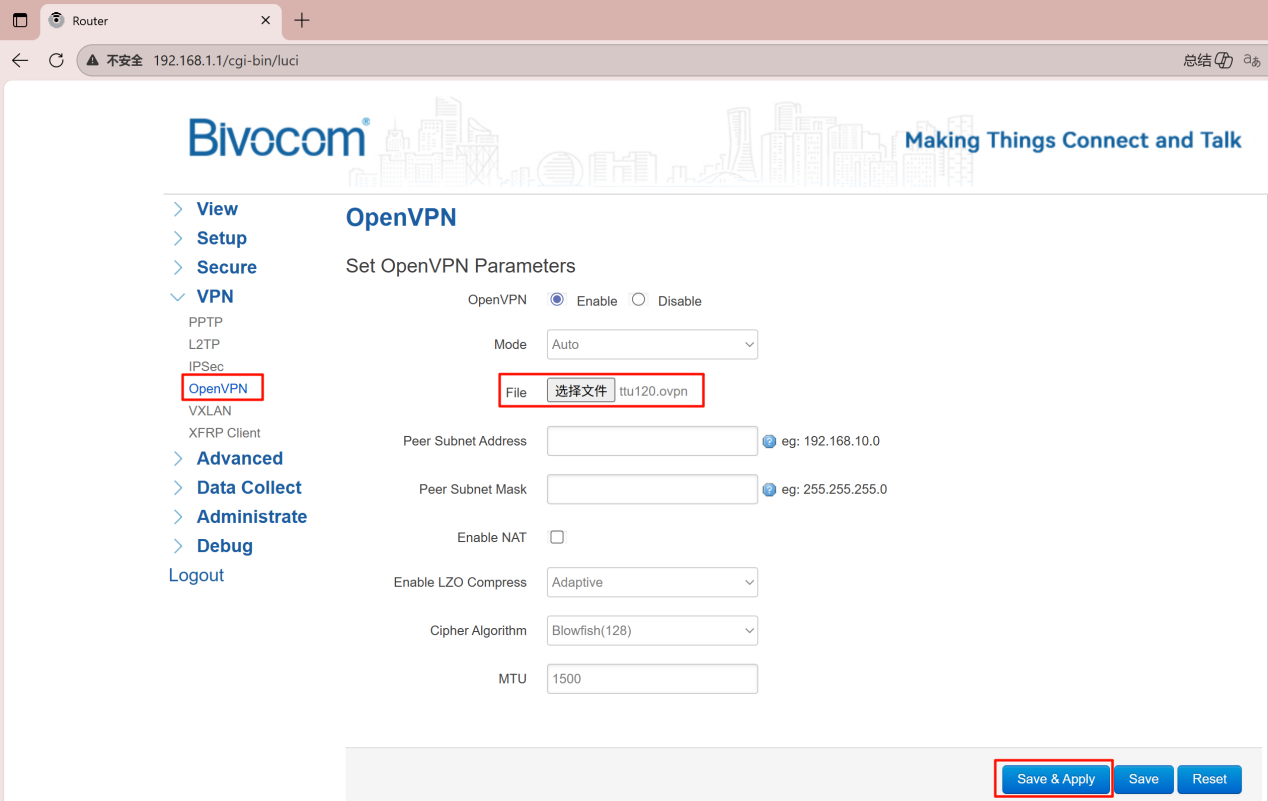
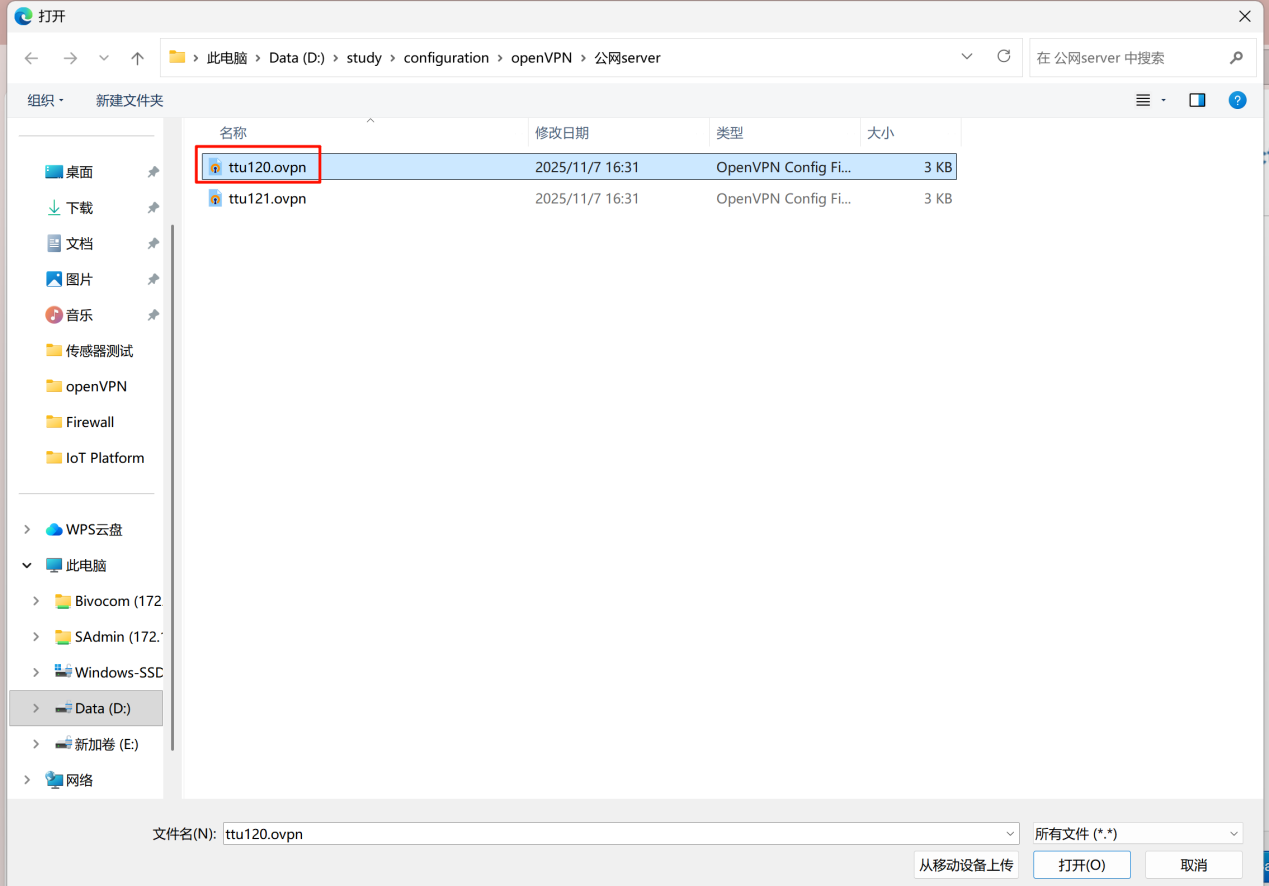
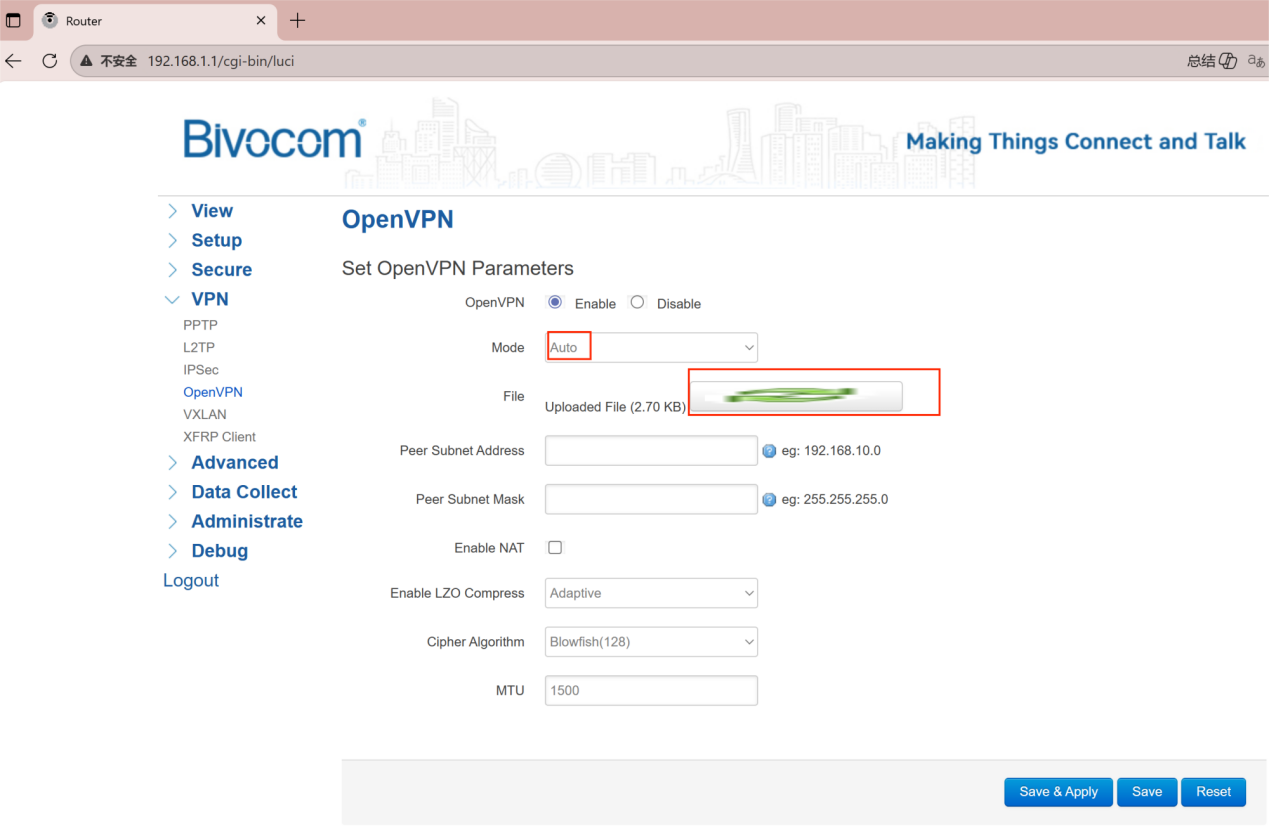
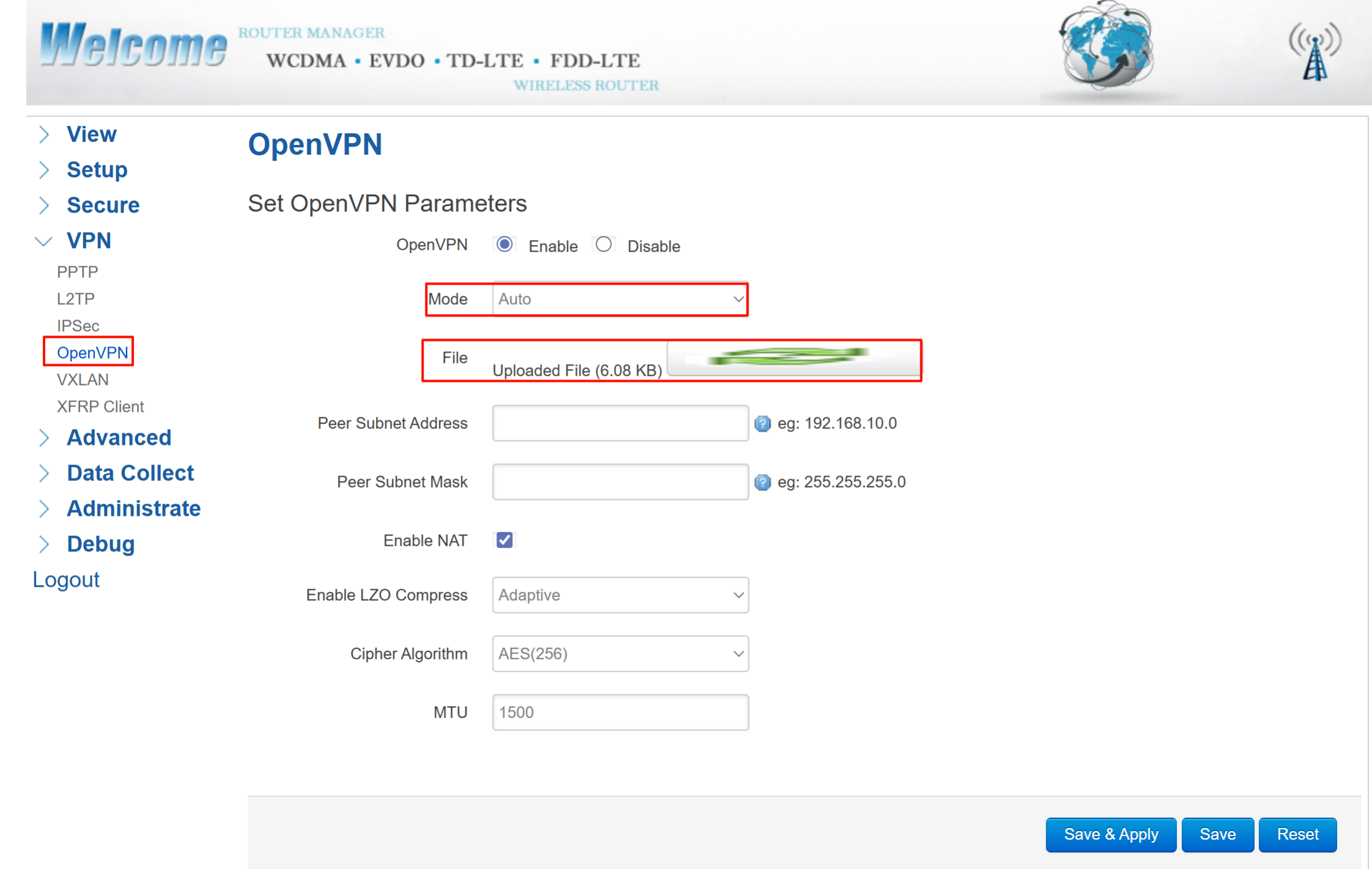
Navigate to VPN > OpenVPN. Enable the OpenVPN feature, select Auto mode, upload the .ovpn file, then click Save & Apply.
Note: The router parses the file automatically. No other fields need to be filled.
Step 3: Verify VPN Status
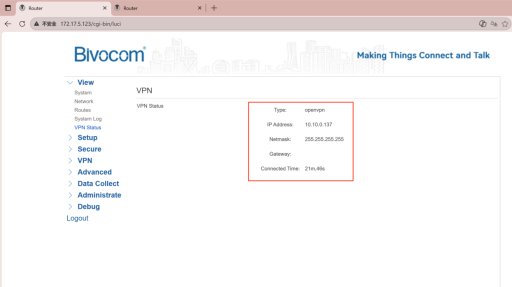
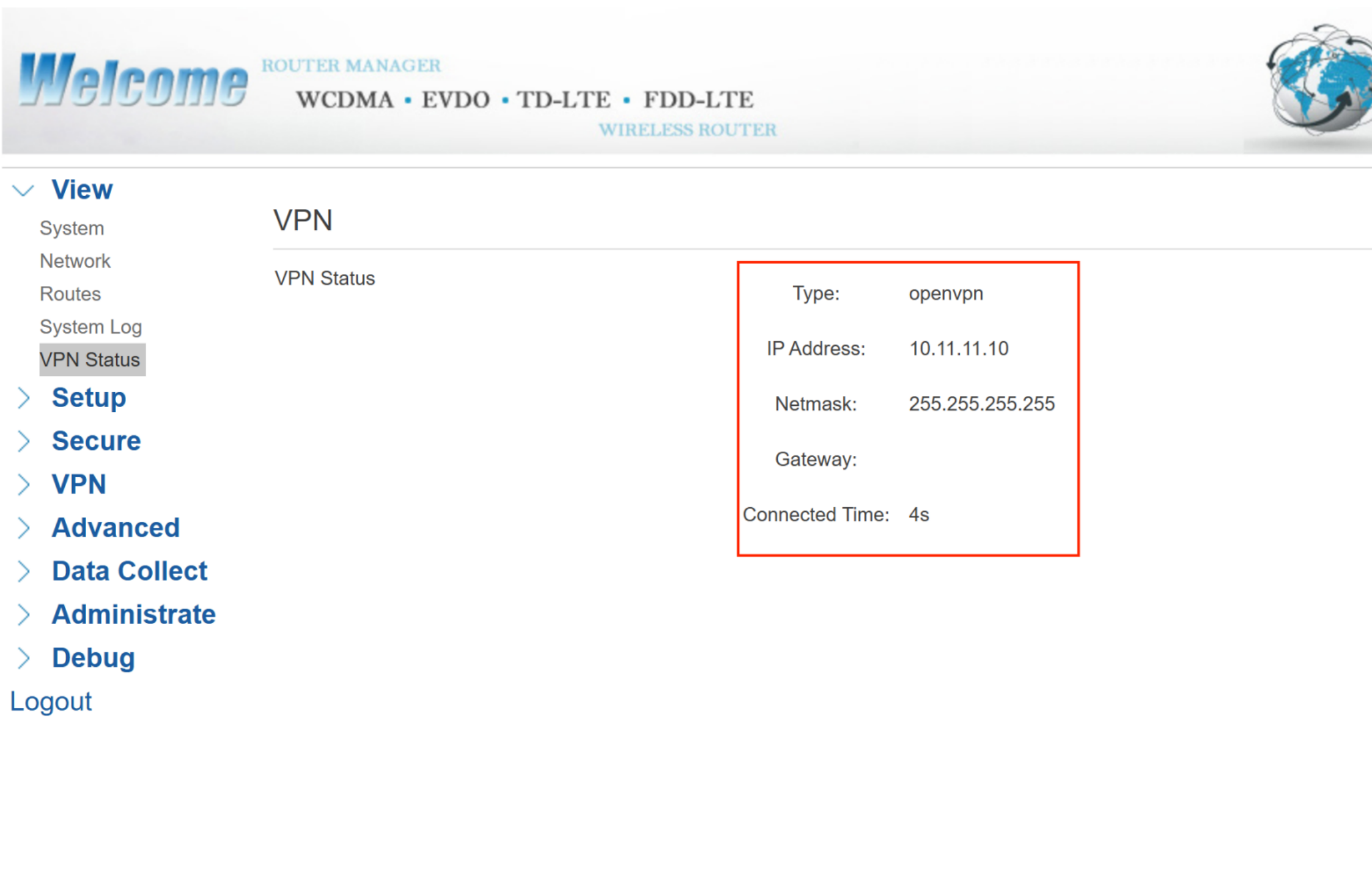
After setup, check the VPN status to confirm a successful link. Go to View > VPN Status, you should see the tunnel IP address (e.g., 10.10.0.137/138), connection time and netmask.
Step 4: Configure a Second Client (Client2)
To verify that the VPN tunnel allows device‑to‑device communication, set up another Bivocom router as a second client. Repeat the same steps on a second device (Client2):
- Ensure it has a valid WAN IP.
- Navigate to VPN > OpenVPN. Enable the OpenVPN feature, select Auto mode, upload the .ovpn file, then click Save & Apply.
- After the connection is established, go to View → VPN Status on Client2. You will see its tunnel IP – for example, 10.10.0.138.
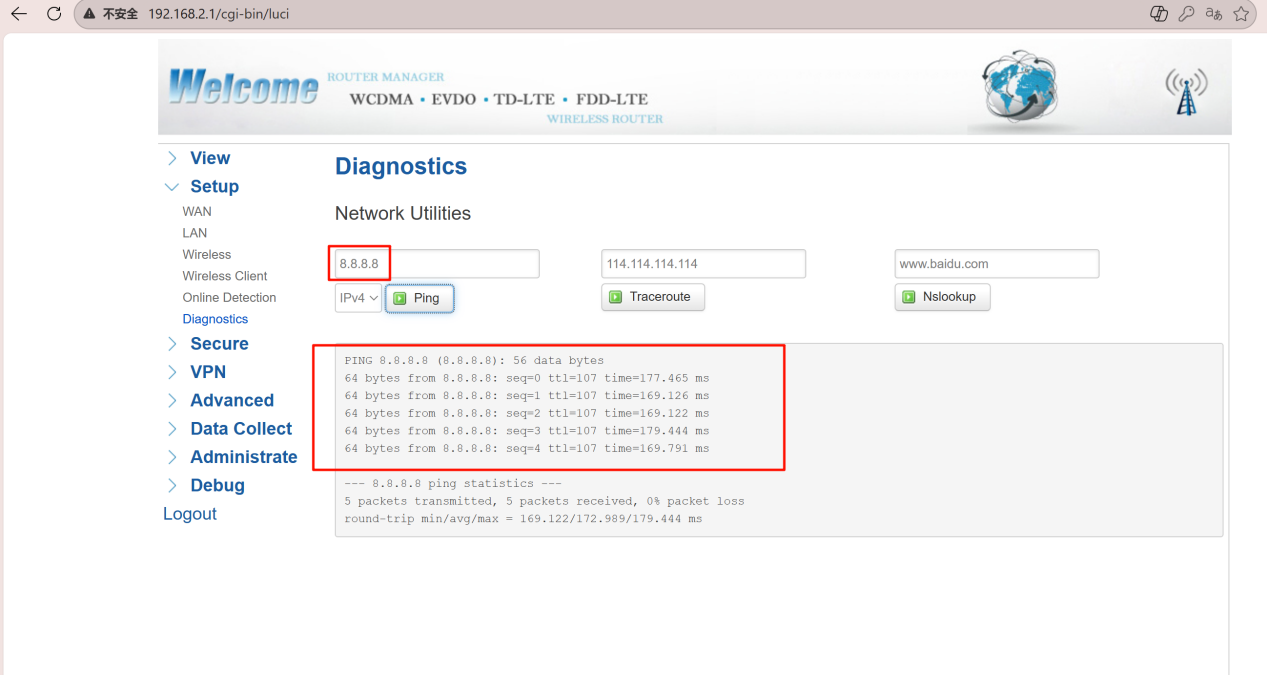
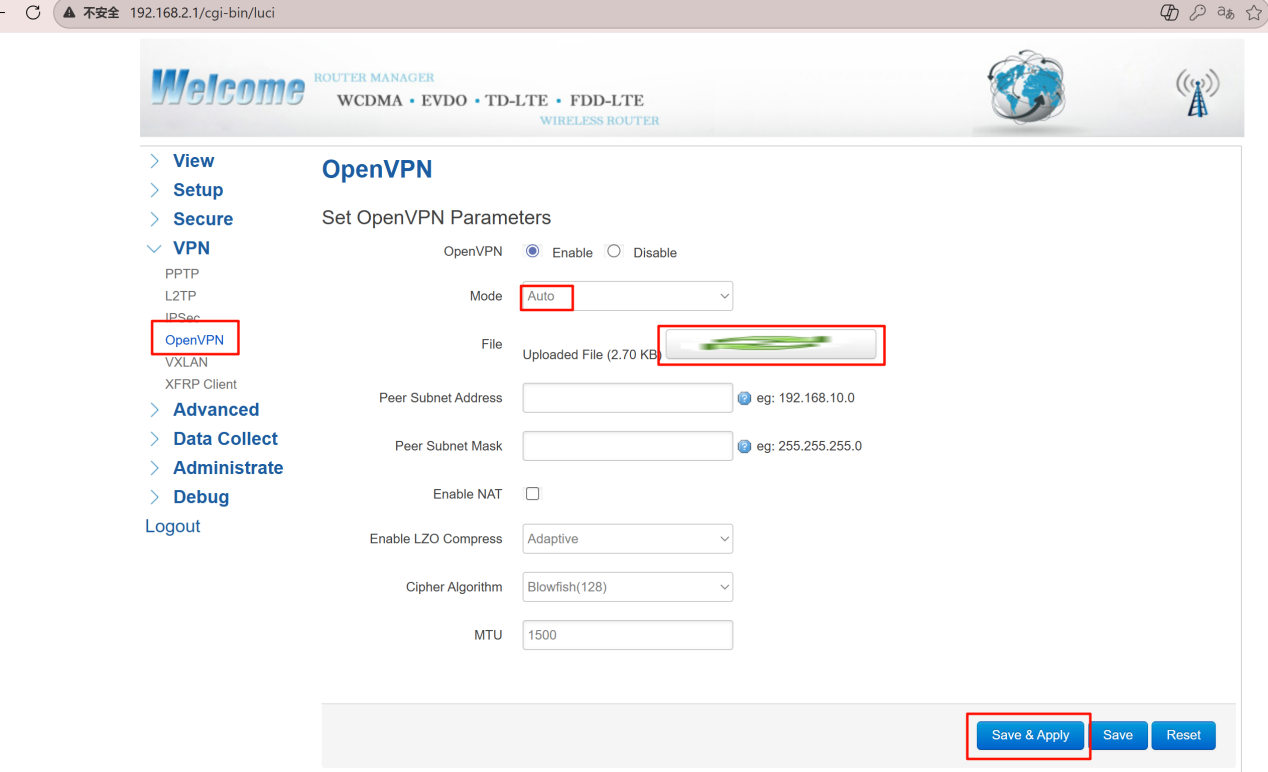
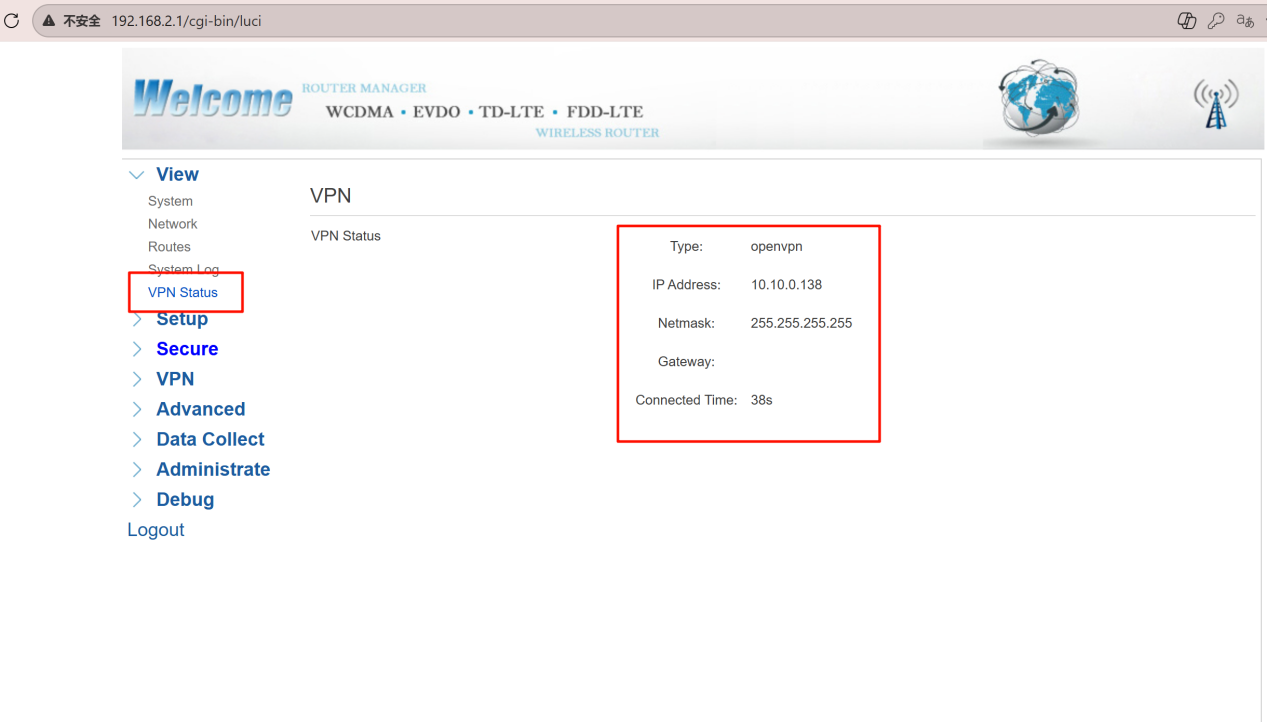
Now you have two independent clients connected to the same OpenVPN server, each with its own tunnel IP.
Step 5: Test Tunnel Connectivity
With both clients connected, you can test whether they can reach each other through the VPN tunnel.
1. Verify via PING
This is the client1, the IP is 10.10.0.137 and PING 10.10.0.138(client2) is OK.
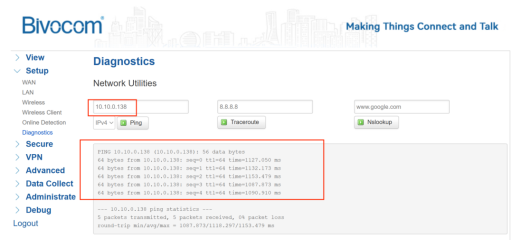
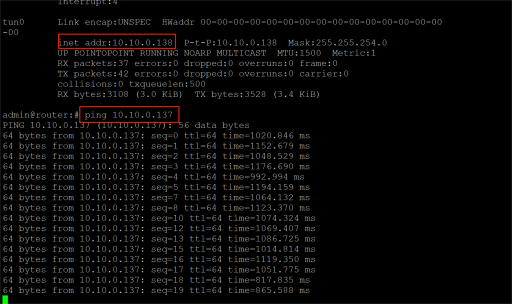
This is the client2, the IP is 10.10.0.138 and PING 10.10.0.137(client1) is OK.
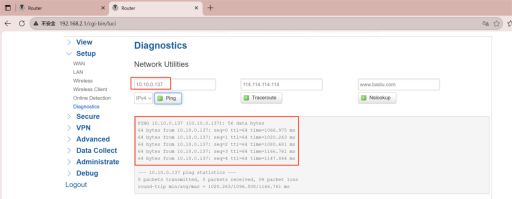
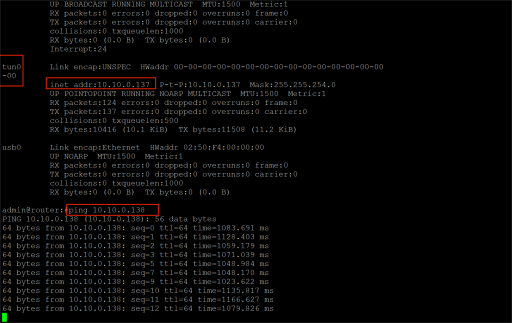
Access the device via CLI and check the network interface.Input the command “ifconfig” and ping the tunnel IP.
This is the client1, the IP is 10.10.0.137 and PING 10.10.0.138(client2) is OK.
This is the client2, the IP is 10.10.0.138and PING 10.10.0.137(client1) is OK.
2. Alternative Test: PC as OpenVPN Server
The second way, we can use the OpenVPN GUI to build the server on our PC, and configure a client to test. The server configuration is as follows.
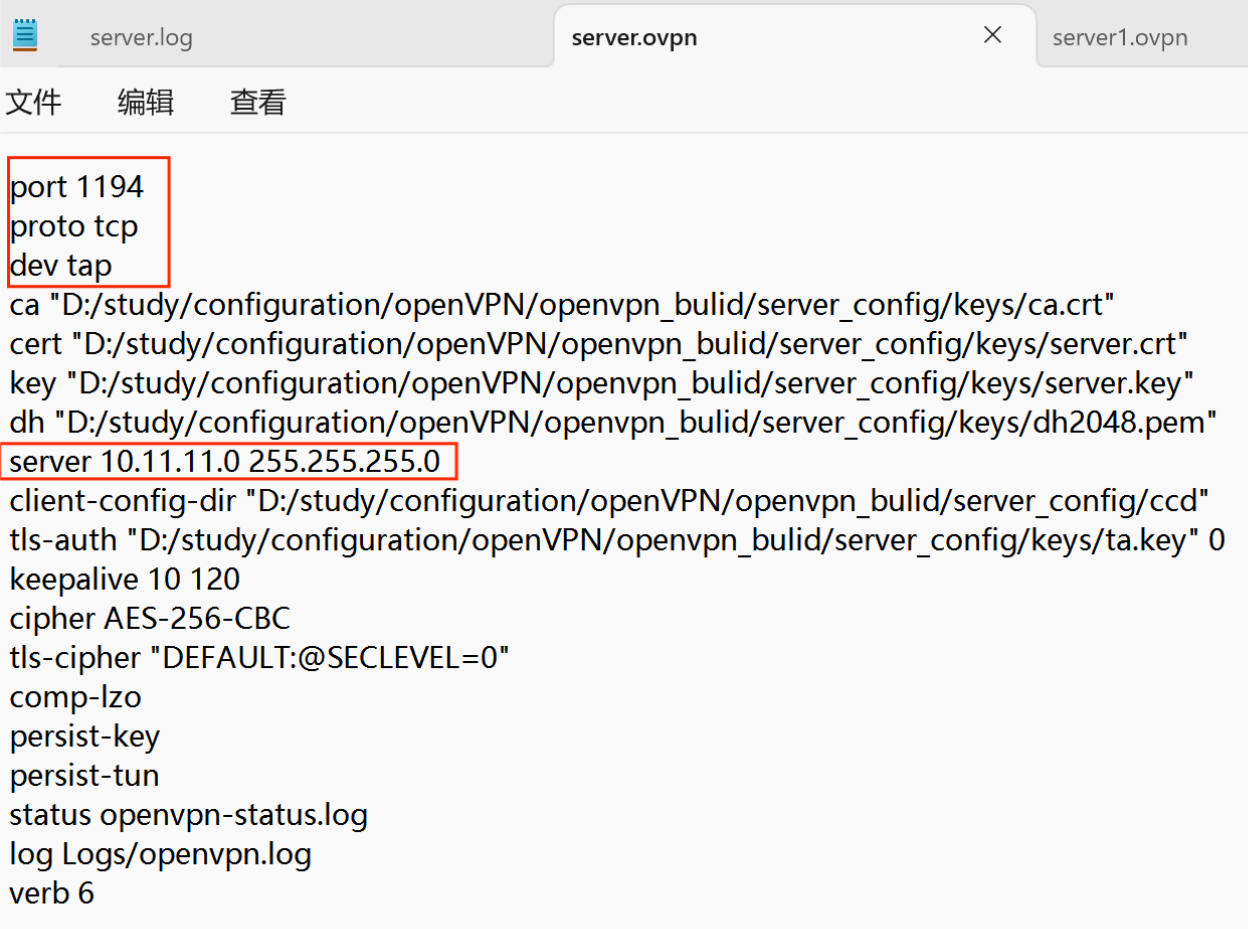
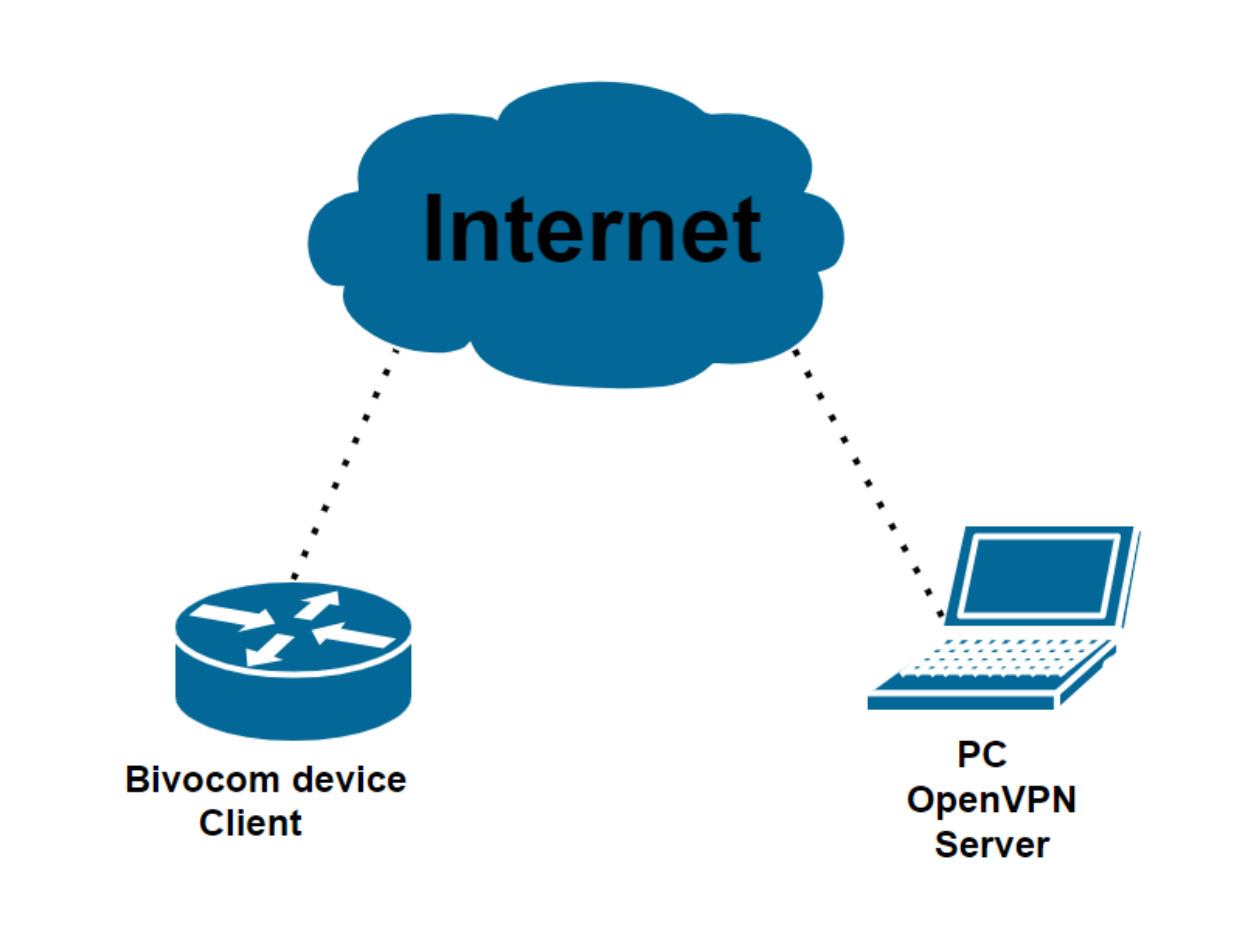
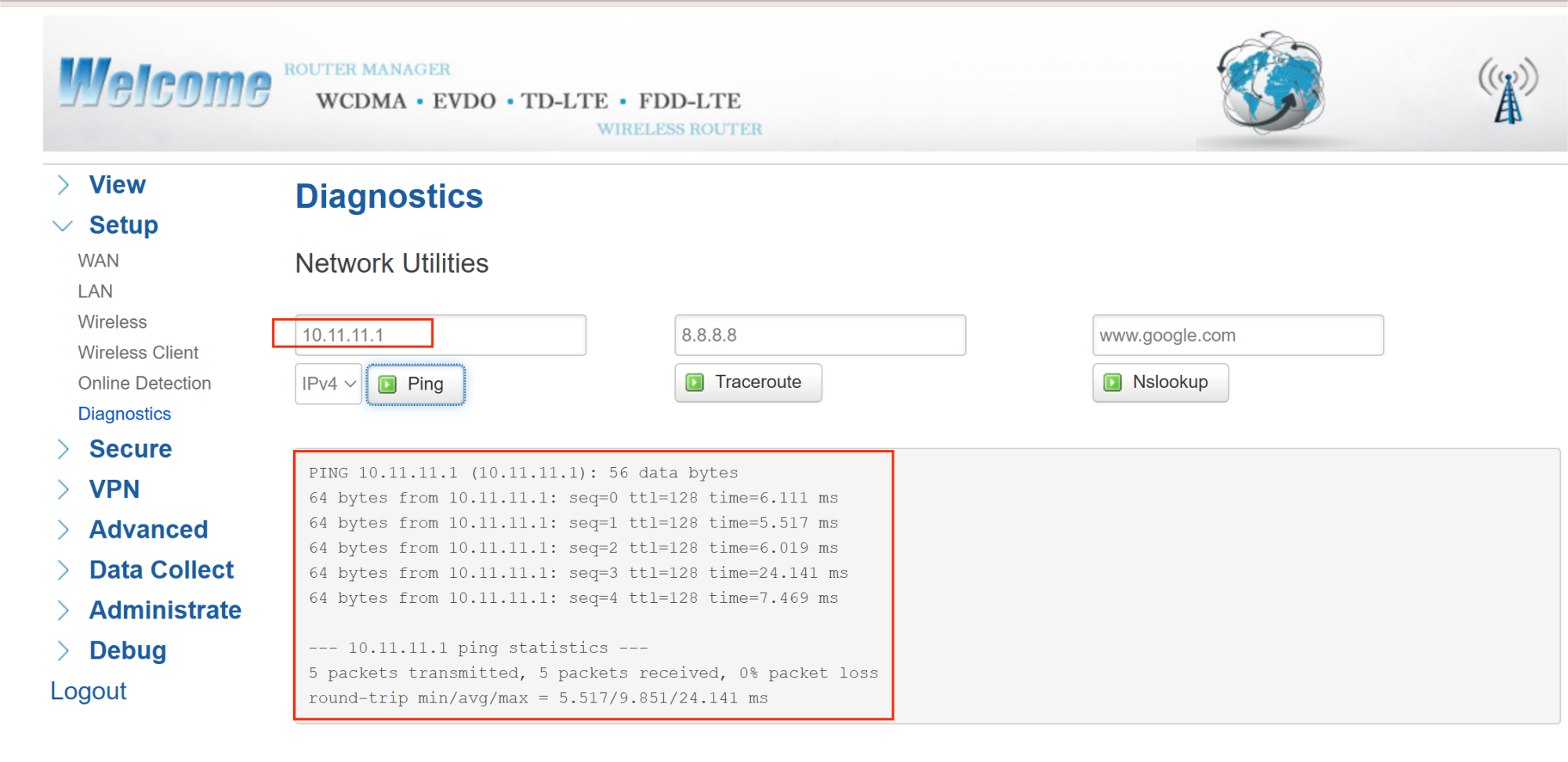
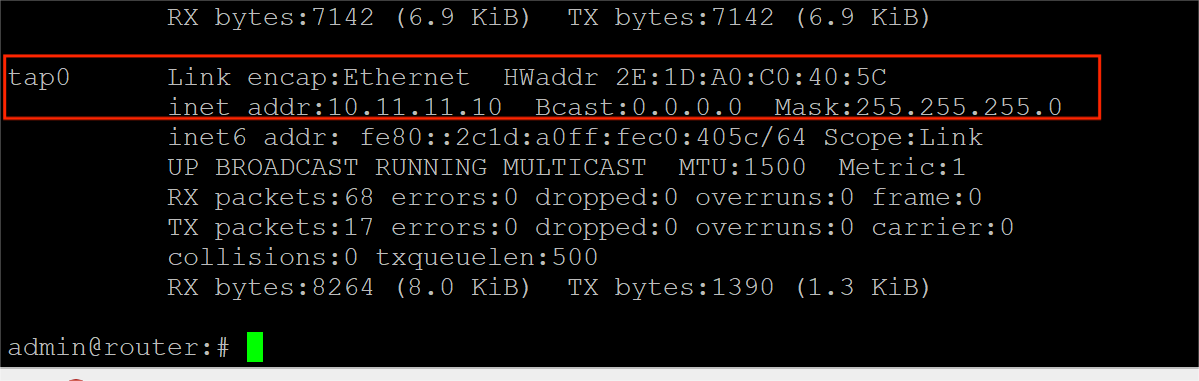
Build the server on our PC. Open the server and the server’s tunnel IP is 10.11.11.1. Configure the device (client). Input the client document (.ovpn), click Save&Apply. And then we can view the client’s tunnel IP (10.11.11.10).
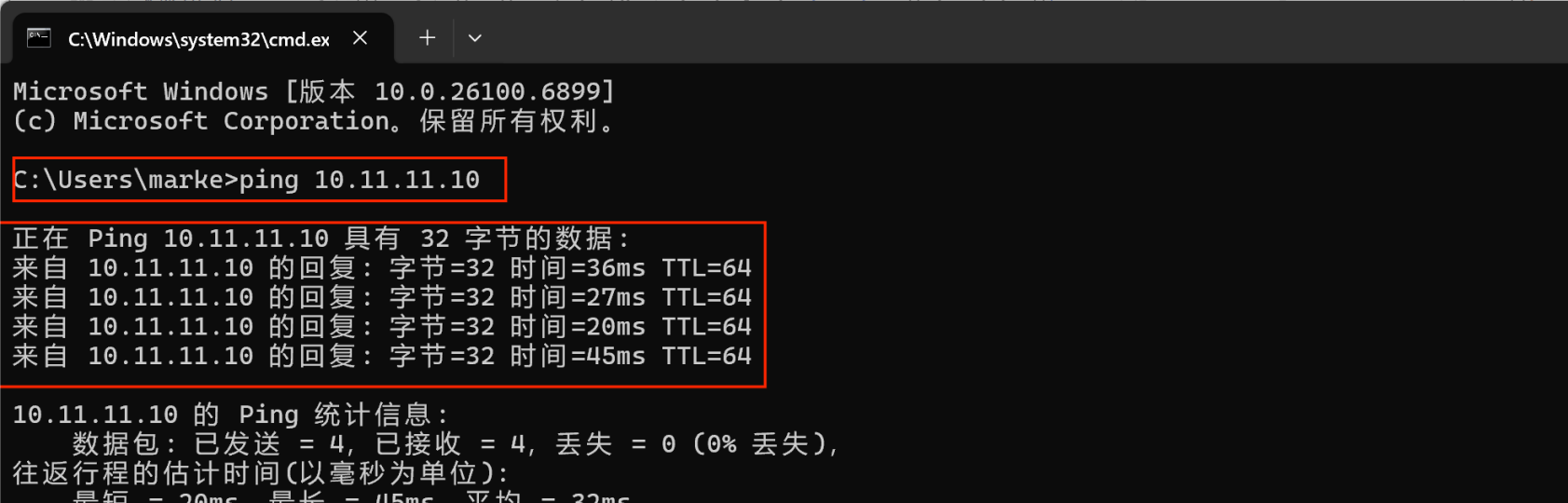
Test the connectivity using PING the tunnel IP and check the network interface. Enter the PC via CLI and ping the client’s tunnel IP(10.11.11.10).
Enter the device WEBUI and ping the server’s tunnel IP(10.11.11.1). And access the device via CLI to check the network interface.
Video Tutorial
For a complete visual walkthrough, watch our step-by-step video:
Auto‑Mode (Ovpn File) vs. Manual Setup
Now that you have seen the auto‑mode workflow, you might wonder how it differs from the traditional manual configuration approach. Our separate guide, “How to Setup OpenVPN on Bivocom IoT Router & Gateway”, covers manual setup in detail. Here is a direct comparison to help you choose the right method for your deployment.
Auto‑mode, you simply upload a complete .ovpn file. The router extracts all necessary parameters – remote server address, port, protocol, encryption ciphers, certificates, and keys – automatically. This makes auto‑mode remarkably fast and error‑resistant. You do not need to understand every OpenVPN directive. It is ideal for large‑scale rollouts, field upgrades, or situations where the VPN configuration comes from an IT team or a VPN service provider.
Manual mode, on the other hand, requires you to enter each setting individually through the web interface. You must copy‑and‑paste certificates and keys into separate text boxes, select the correct cipher from a dropdown, and define routing options by hand. While this process takes longer and leaves more room for human error, it offers full control. You can tweak advanced parameters that might not be present in a standard .ovpn file. Manual mode is also more flexible when the server uses non‑standard settings or when you want to debug a connection step by step.
Professional Support & Services
Bivocom combines decades of industrial IoT engineering with a deep understanding of secure remote connectivity. We deliver rugged industrial routers and gateways with native OpenVPN auto‑mode support and flexible firmware options—building a stable foundation for seamless VPN‑to‑cloud integration across smart grids, water treatment plants, oil‑gas pipelines, and smart city infrastructure. Whether you are deploying to one site or scaling across hundreds of sites, our approach centers on three priorities:
- Expert Technical Guidance: Direct help with .ovpn file preparation, firmware upgrades, and tunnel troubleshooting for reliable data flow.
- Tailored Integration Solutions: Custom adaptations for specific OpenVPN server versions, complex certificate chains, or challenging network environments.
- Comprehensive Resource Hub: Step‑by‑step guides, video tutorials (YouTube), and configuration templates to accelerate deployment.
Ready to build reliable, scalable OpenVPN connectivity?
Contact [email protected] for a personalized consultation. At Bivocom, no more than connectivity—we build the foundation for safer, smarter, and more resilient secure tunnels across your entire industrial footprint.

-on-Bivocom-TG465-IoT-Edge-AI-Gateway-with-Ubuntu-768x512.png "Install Ollama & Llama (LLM, large language model)) on Bivocom TG465 IoT Edge AI Gateway with Ubuntu")


Comment