Step-by-Step Configuration
After exploring how Docker IoT gateway containerization transforms edge computing—delivering consistency, speed, and true portability—it’s time to put theory into practice. Bivocom TG465, with its quad‑core ARM Cortex‑A55, up to 8GB RAM, and native Ubuntu, provides the ideal hardware foundation for Docker. This guide walks you through installing Docker, verifying the setup, and running your first container—all in minutes. Whether you’re modernizing legacy systems, deploying edge analytics, or preparing for AI‑driven maintenance.
Prerequisites You Need
1. Gateway based on Ubuntu system (TG452, TG462, TG465)
⚠️Note: Docker requires Ubuntu. TG465 supports both OpenWRT and Ubuntu—specify Ubuntu at time of purchase, or contact support to upgrade from OpenWRT.
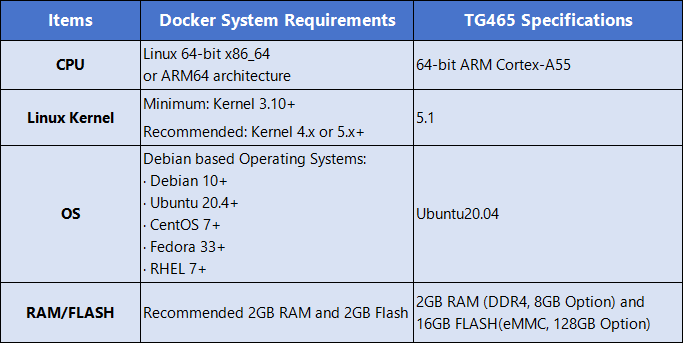
2.System requirements
In order to install Docker, your field device needs to meet the following requirements. There are specifications of TG465 gateway which can fully meet the system requirements.
Step 1: Connect to Your Gateway
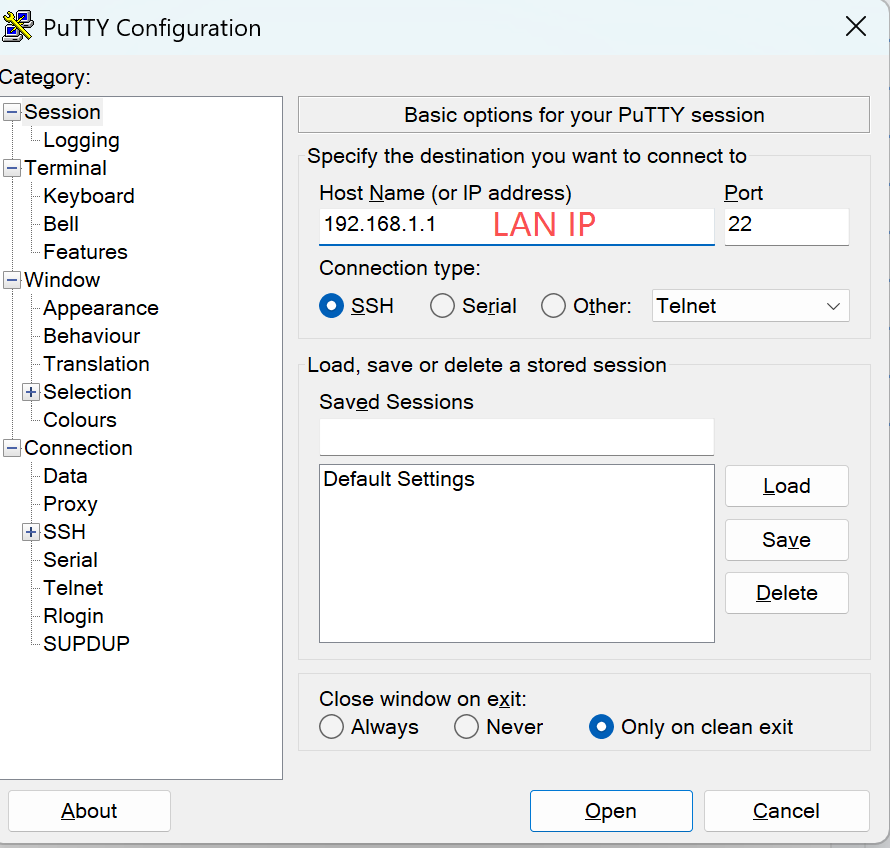
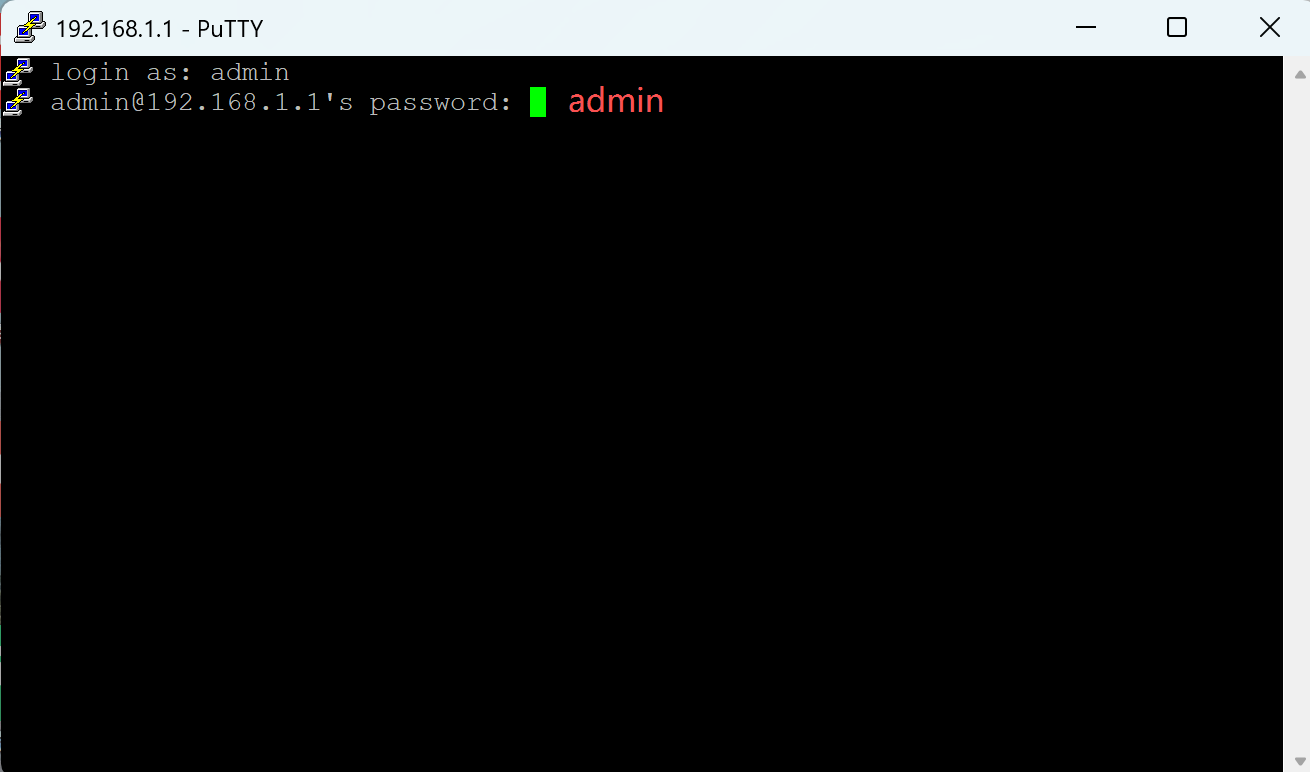
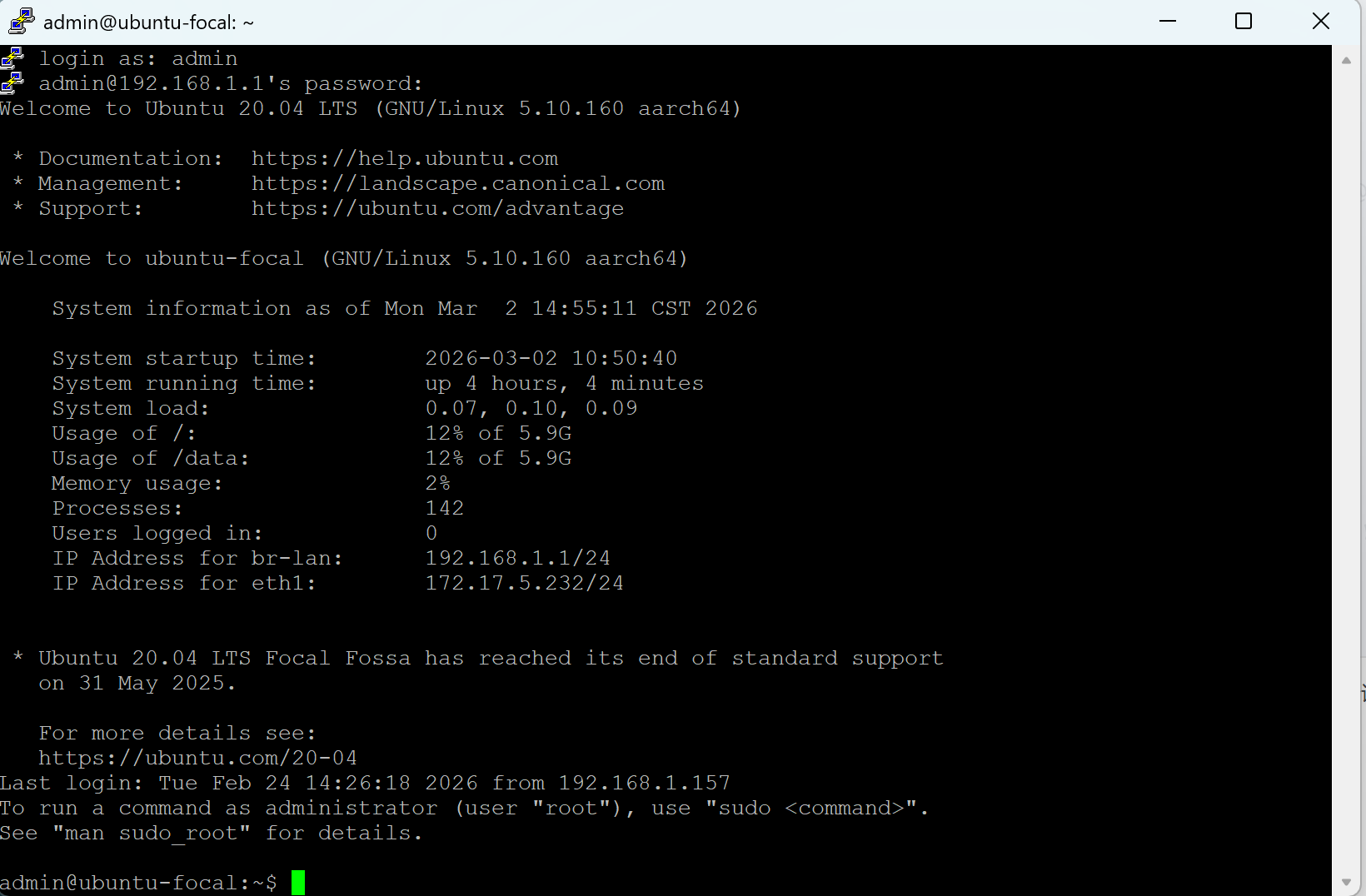
Open your SSH client and connect to the gateway’s default LAN IP: 192.168.1.1. When prompted, enter the default username and password admin. A successful login will display the Ubuntu command prompt on your terminal.
Step 2: Update Package Lists
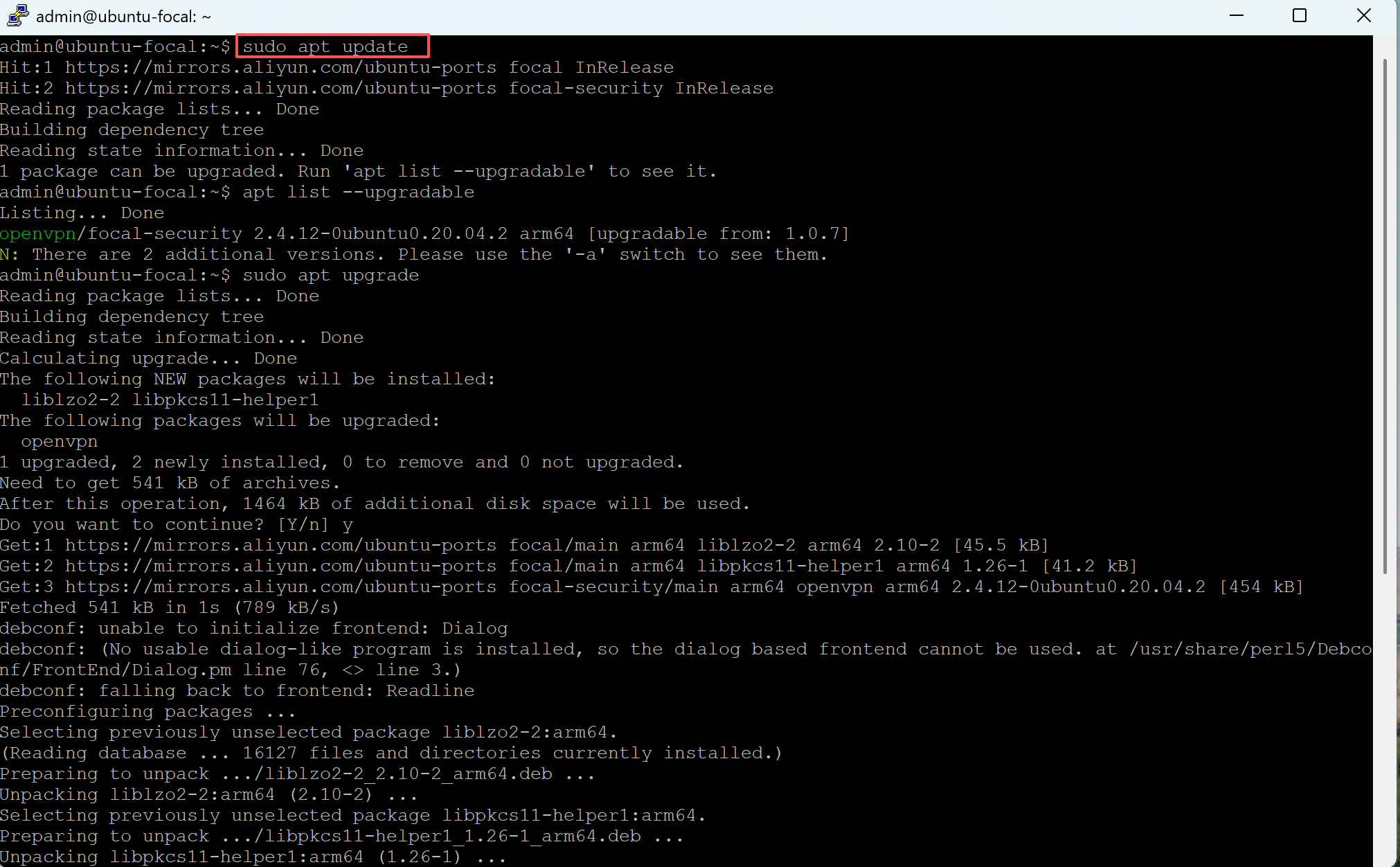
Refresh the TG465’s package repository to ensure you install the latest stable version of Docker and its dependencies. Run this command: sudo apt update
Step 3: Install Docker Engine
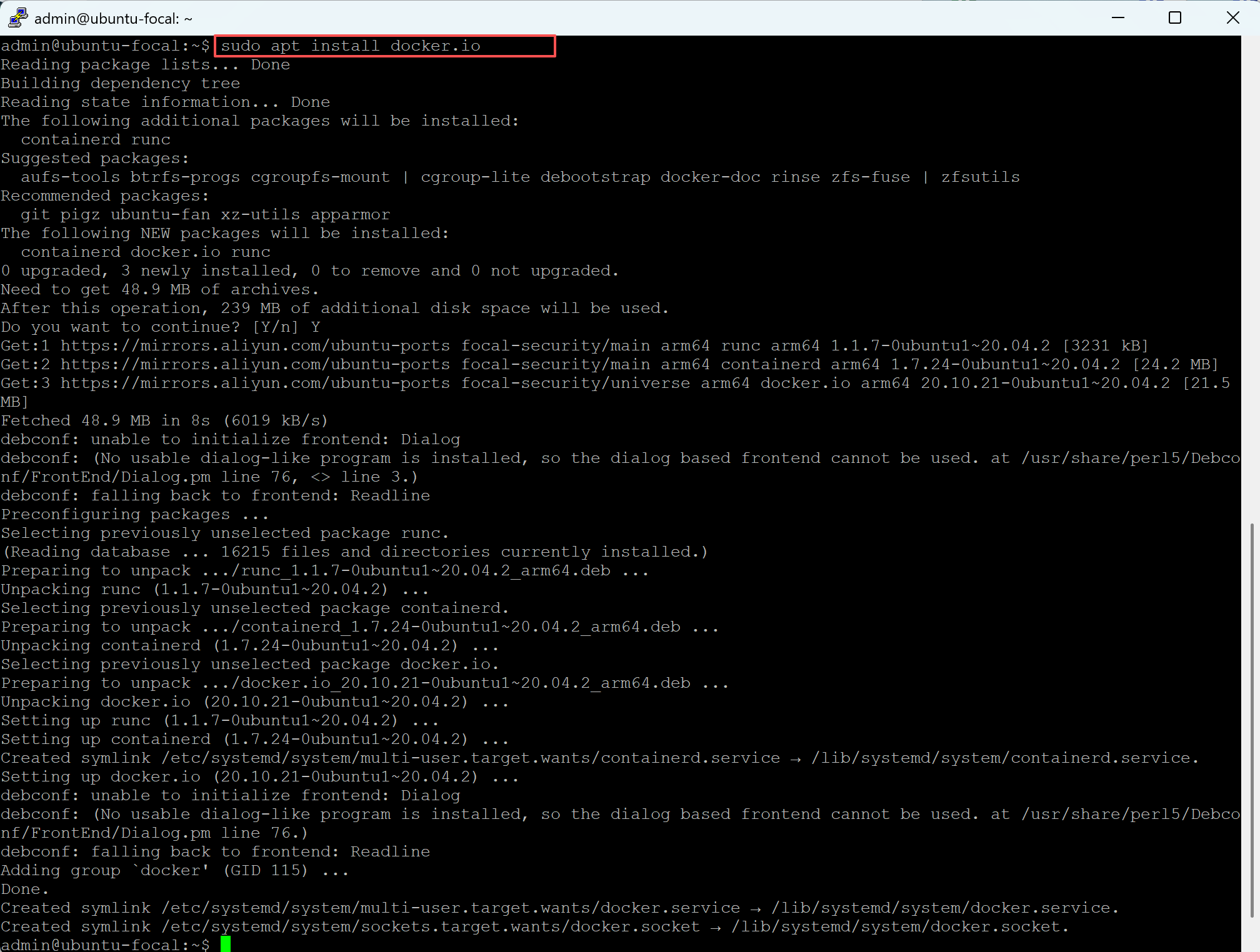
Install Docker using Ubuntu’s official repository. The docker.io package contains everything needed to run containers—the Docker daemon, the Docker client, and all required dependencies. Run: sudo apt install docker.io
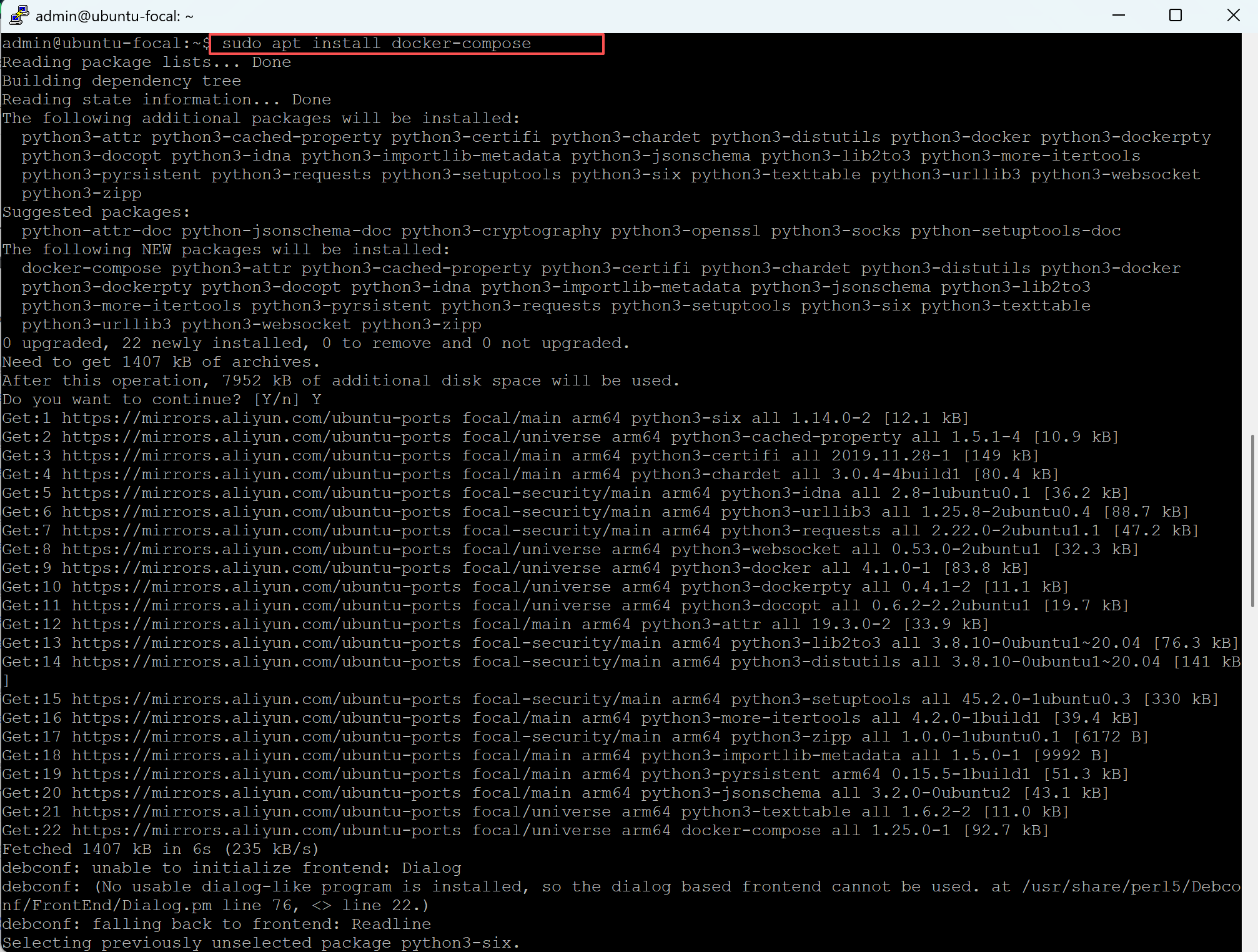
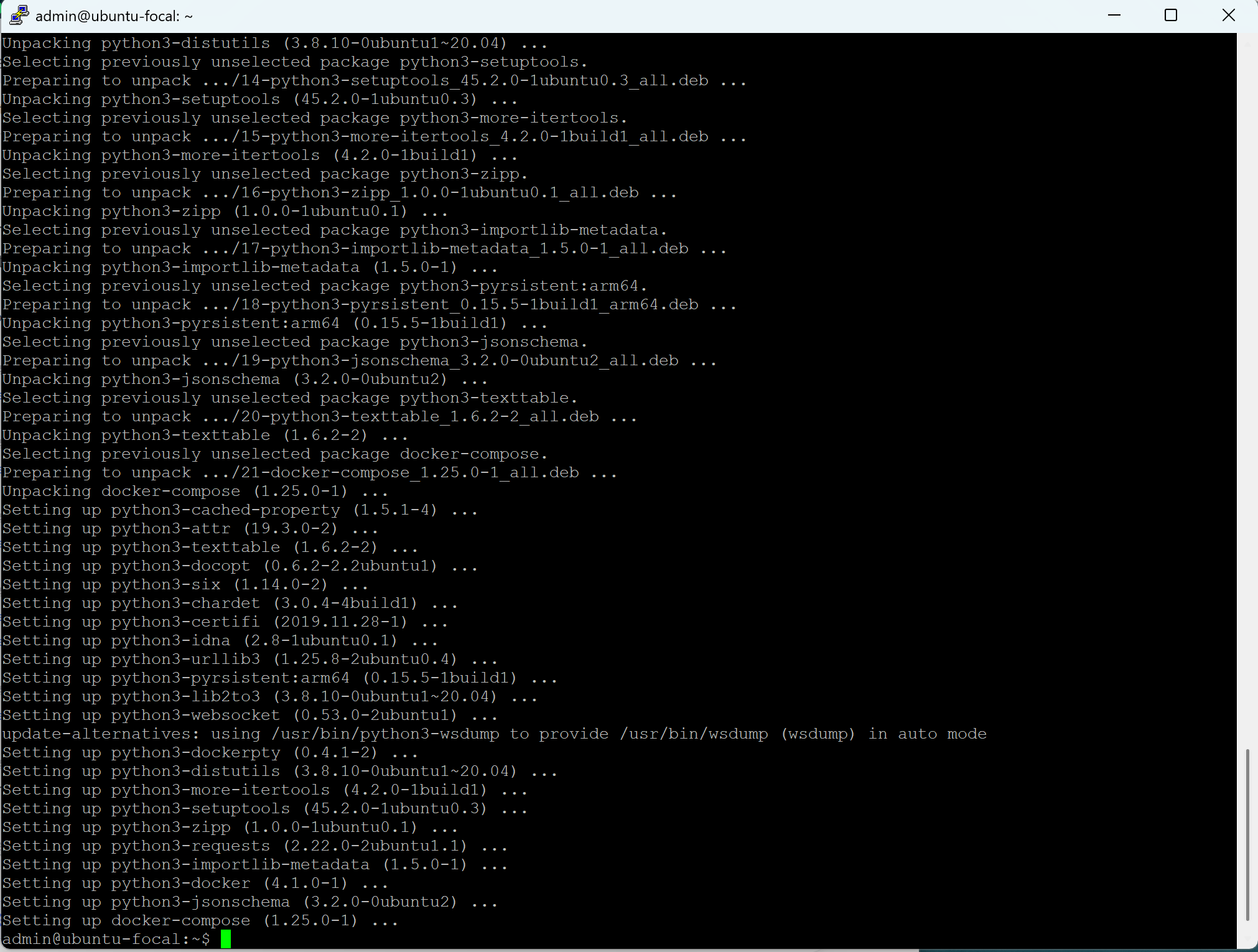
Step 4: Install Docker Compose (Optional)
Docker Compose simplifies running multi‑container applications with a single configuration file. Install it to easily manage paired IIoT services: sudo apt install docker-compose
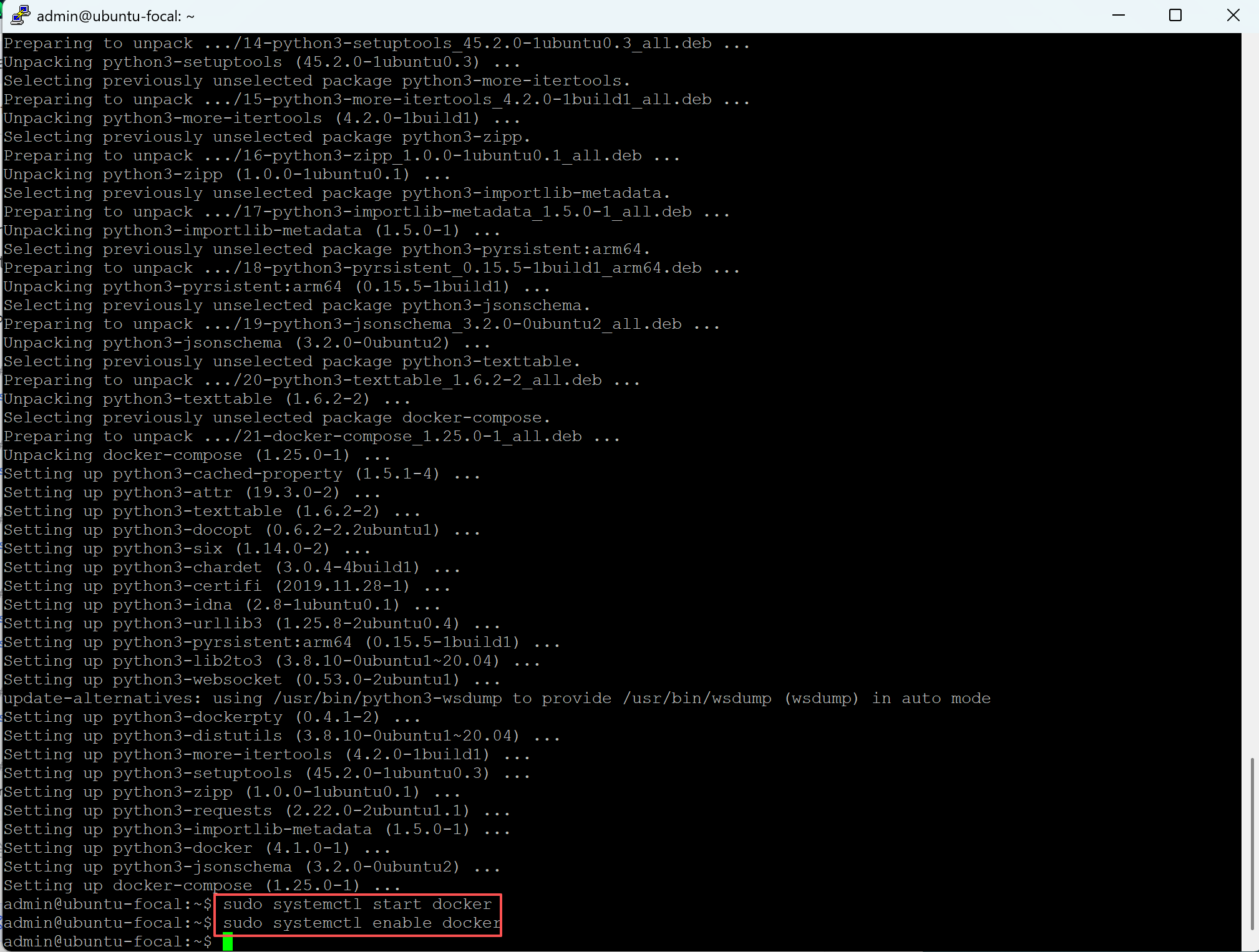
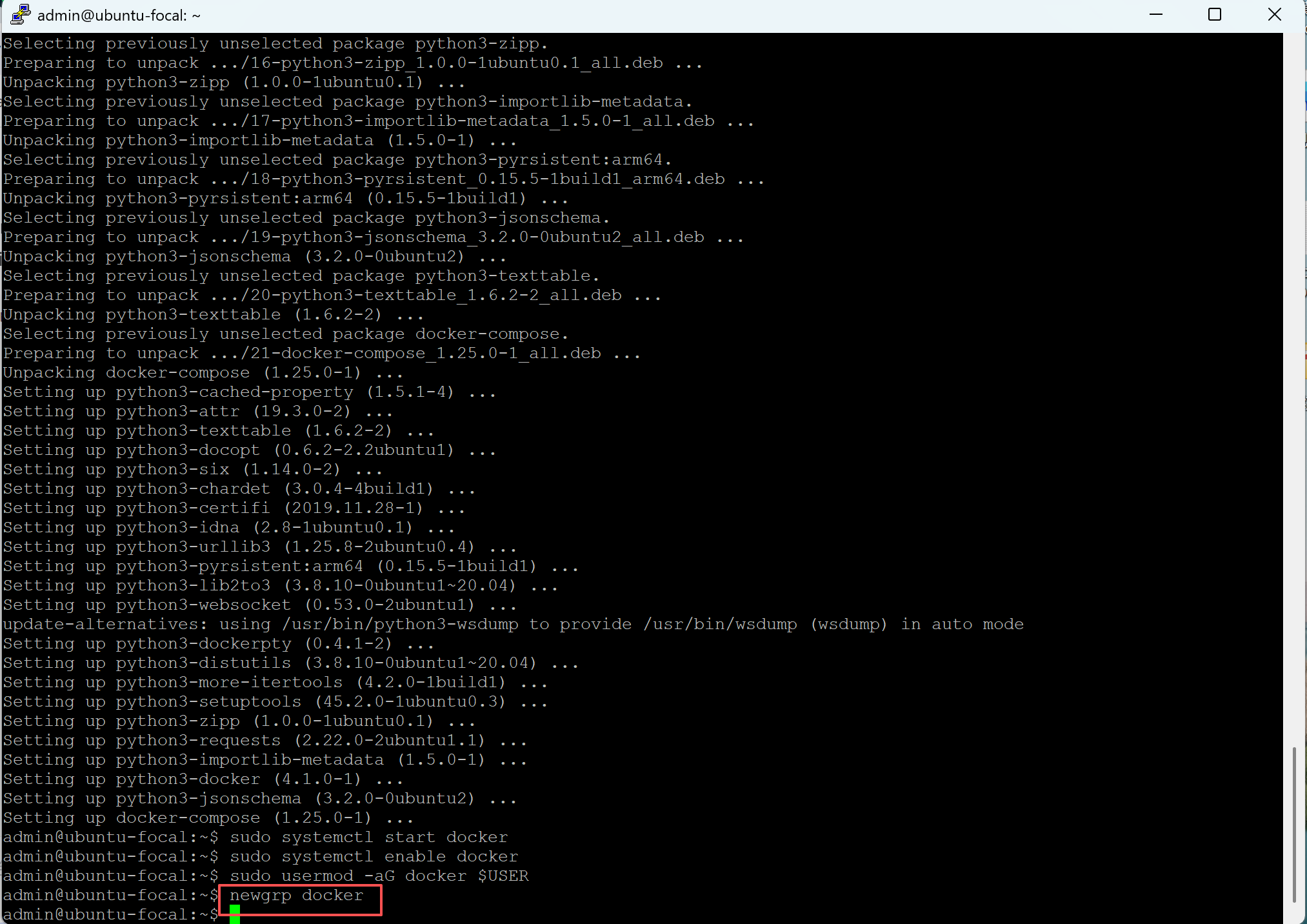
Step 5: Start Docker and Enable Auto-Start
After installation, start the Docker service and configure it to start automatically on TG465 reboot—critical for 24/7 uninterrupted industrial operations. Run in sequence: sudo systemctl start docker , sudo systemctl enable docker . This ensures Docker runs continuously on the TG465, even after power cycles or remote reboots via Bivocom’s Device Management Platform (DMP).
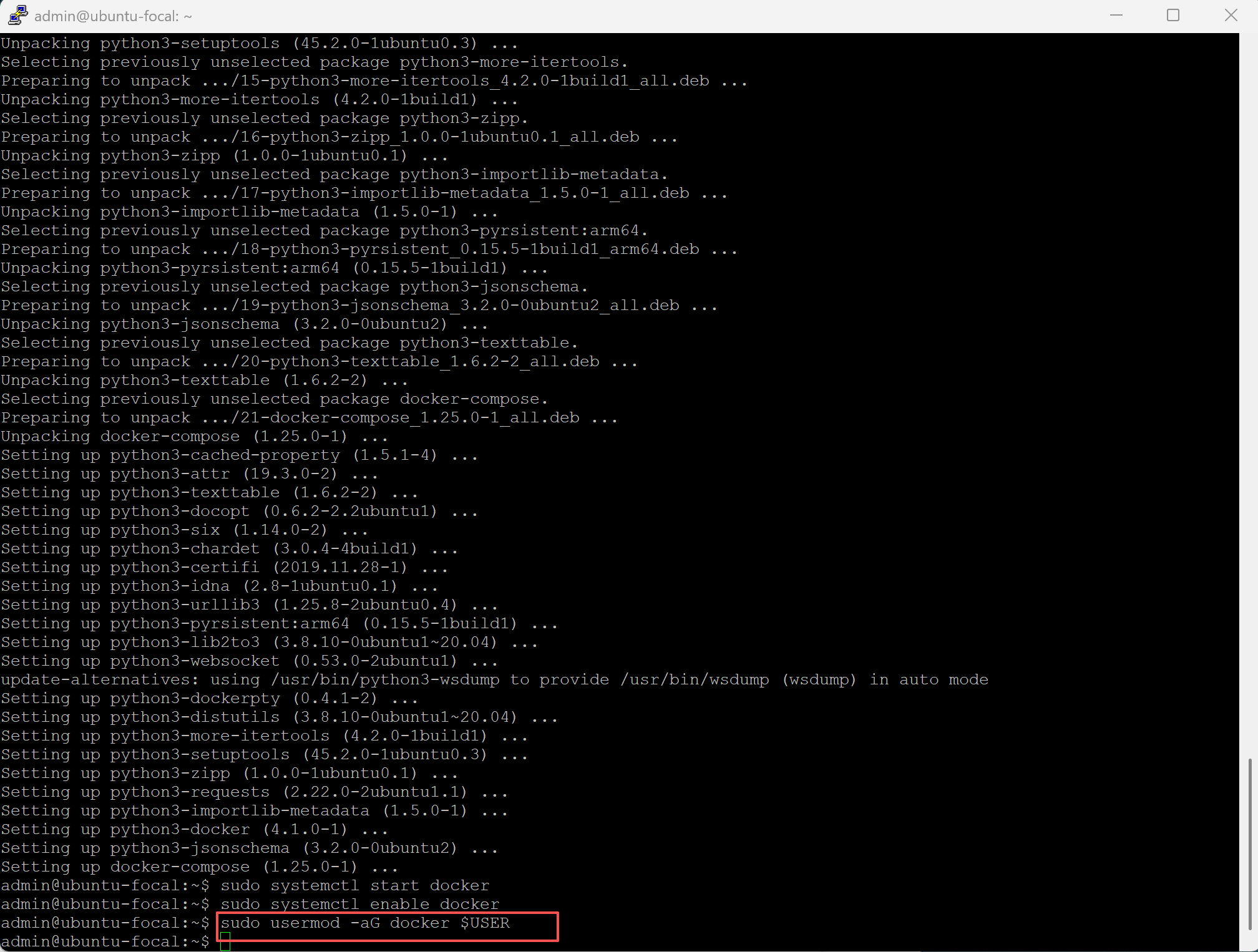
Step 6: Add Your User to the Docker Group (Optional)
By default, all Docker commands require “sudo” privileges. To run Docker without typing “sudo” each time, add your current user to the docker group: sudo usermod -aG docker $USER. Then, activate the group changes immediately. Re-login or execute the following command to make the group take effect: newgrp docker
⚠️Security Note: Adding a user to the docker group grants them effective root access to the host. Please consider whether this trade‑off is acceptable. If you prefer to keep using “sudo”, skip this step.
Step 7: Verify the Installation
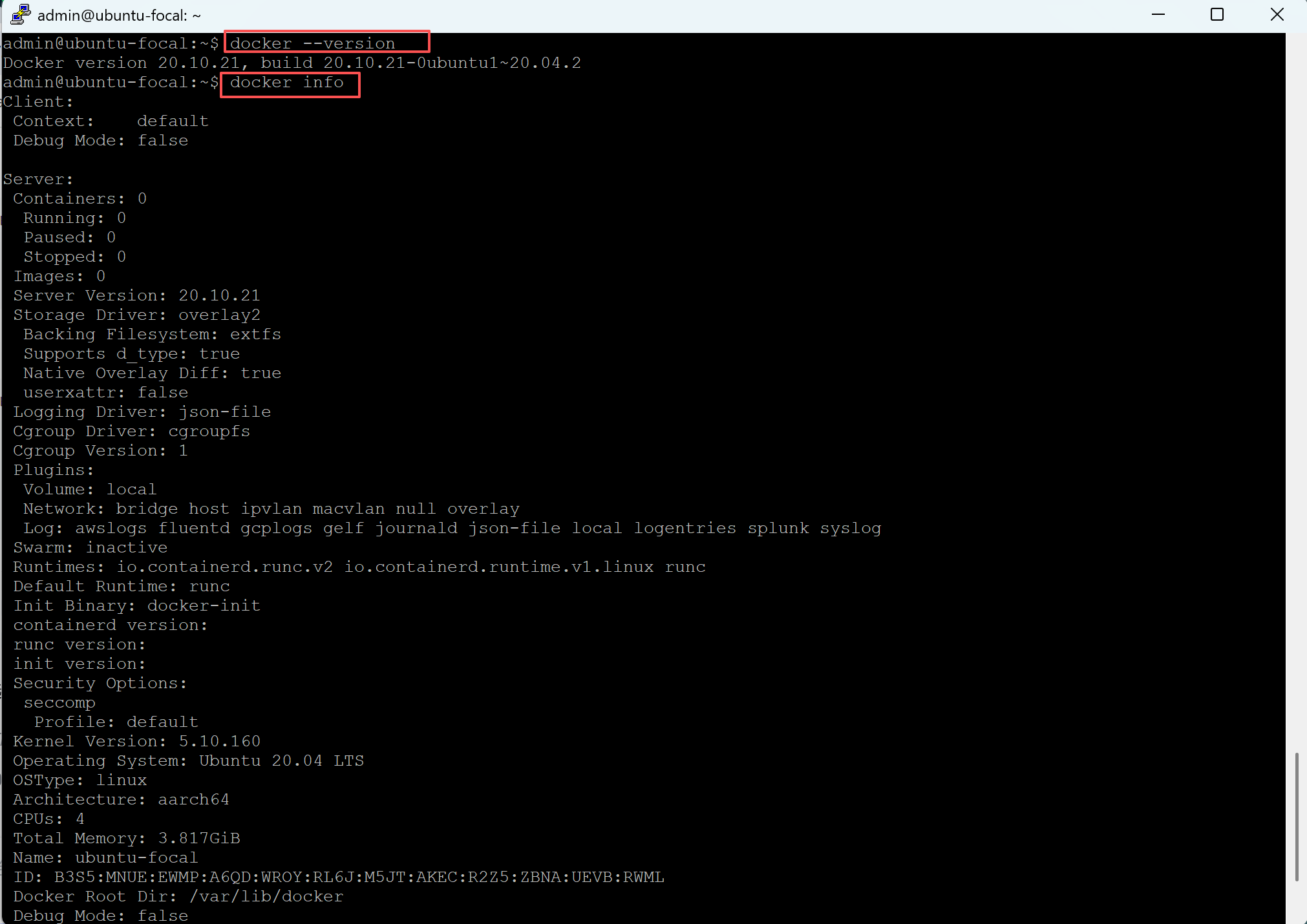
Confirm Docker is fully operational with two quick commands—no errors mean your setup is ready for IoT workloads:
- Check the installed version:
docker --version - Examine detailed system information:
docker info
This displays the number of containers, images, storage driver, and runtime details. A successful output confirms the Docker daemon is running and accessible.
Step 8: Run a Test Container
Once validated, run two fast, practical tests to confirm containers run as expected on the TG465. These tests cover core Docker functionality—image pulling and interactive container execution.
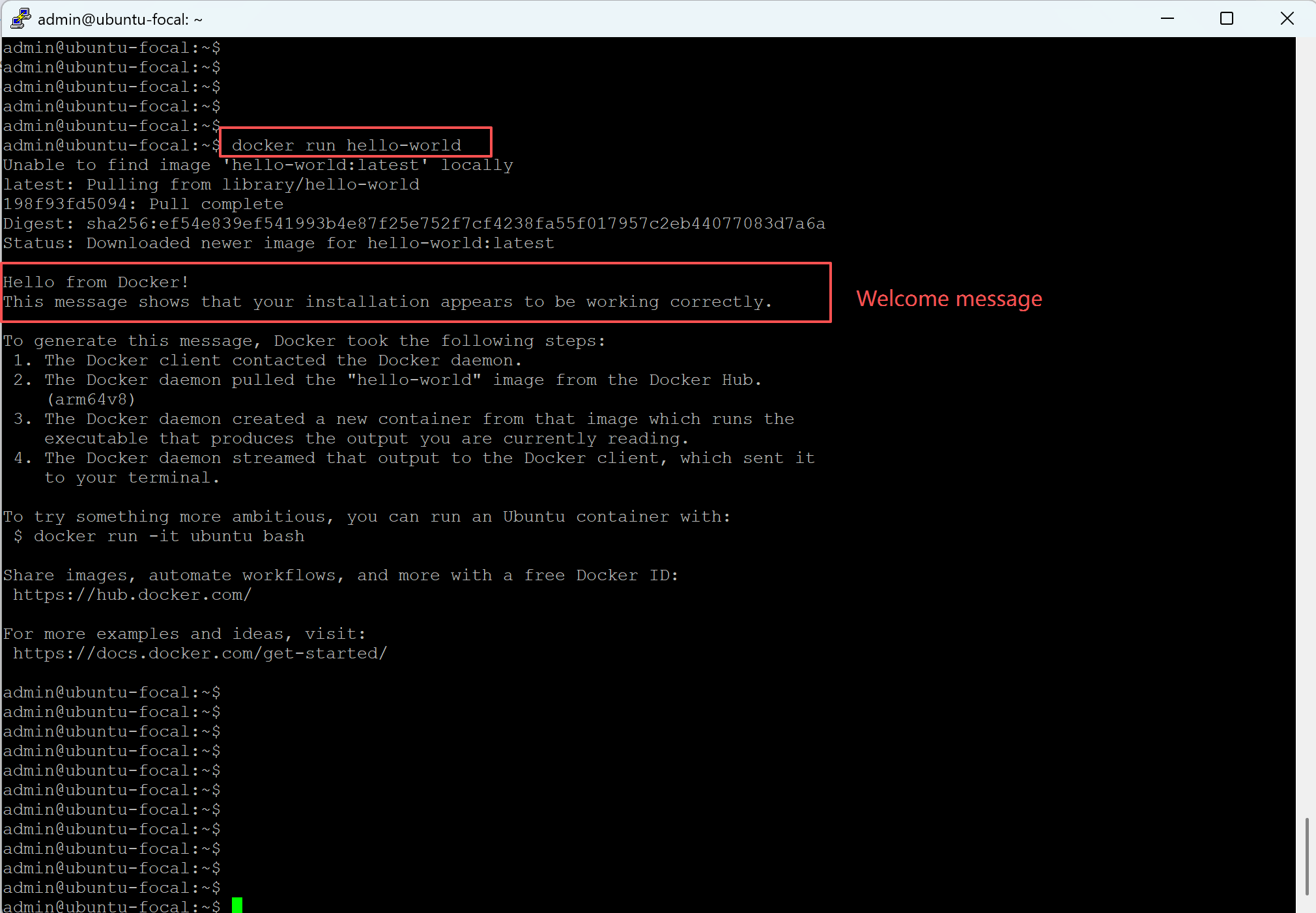
Test 1: Run the Official hello-world Image
To ensure Docker can pull images from a registry and run containers, execute the official “hello-world image” test: docker run hello-world. Docker will automatically download the hello-world image from Docker Hub and start a container. If everything works, you’ll see a welcome message explaining that your installation appears to be functioning correctly.

Test 2: Run an Interactive Ubuntu Container
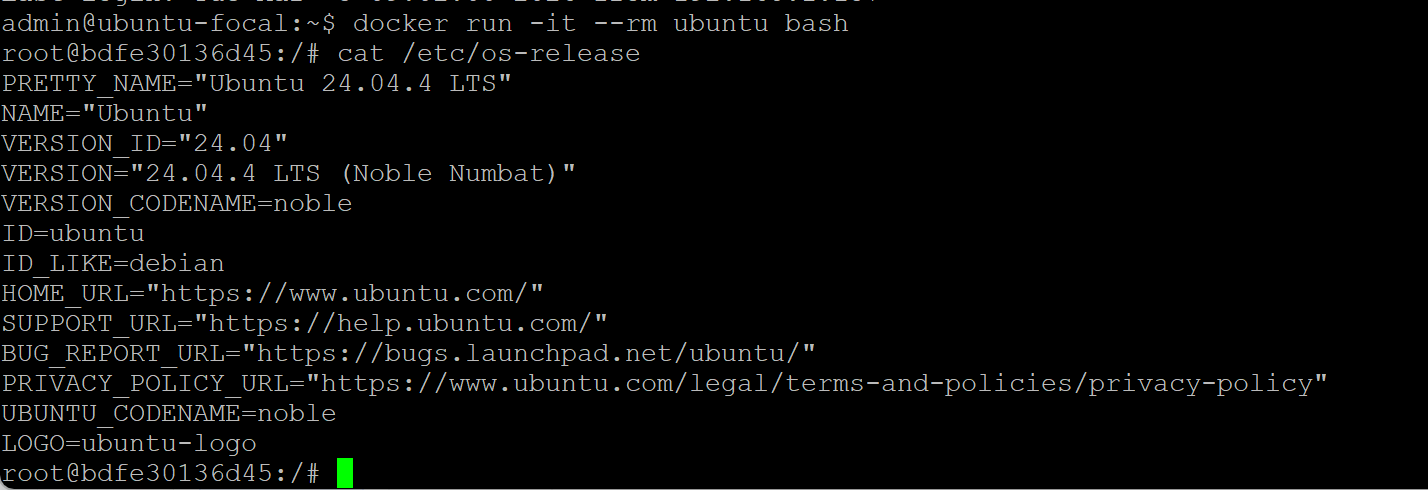
For a more realistic demonstration, run an interactive Ubuntu container. This test verifies that you can pull larger images and work inside a containerized environment.
- Pull the latest Ubuntu image:
docker pull ubuntu:latest - Start an interactive container and launch a bash shell (
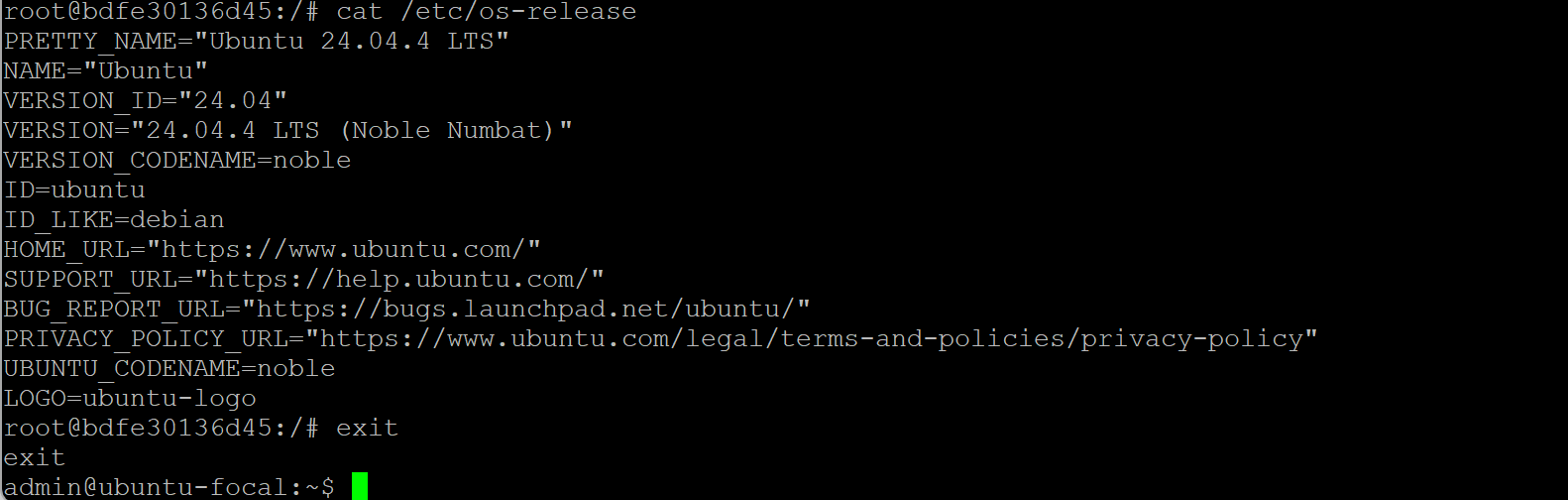
--rmflag deletes the container on exit to save storage):docker run -it --rm ubuntu bash - Once inside the container, you can execute Linux commands. For example:
-
- Check the operating system version:
cat /etc/os-release - Exit the container:
exit
- Check the operating system version:
⚠️Note: Docker is an open-source platform. Bivocom provides the installation environment and ensures TG465 hardware fully supports Docker on Ubuntu. Application development and custom container builds are secondary development—please refer to the Docker guides.


Video Tutorial
For a complete visual walkthrough, watch our step-by-step video:
Professional Support & Services
Bivocom leverages over a decade of industrial IoT expertise to power every deployment. We deliver rugged, Docker‑ready gateways that combine enterprise‑grade hardware with Ubuntu out of the box—providing a seamless foundation for containerized edge computing. Our framework is purpose‑built for manufacturing, energy, and smart city deployments, ensuring reliable containerization, smooth edge‑to‑cloud connectivity, and consistent performance through three core pillars:
- Expert Technical Guidance: Direct setup help and troubleshooting for reliable data flow.
- Tailored Integration Solutions: Tailored adaptations for specific protocols and challenging environments.
- Comprehensive Resource Hub: Step-by-step guides and configuration templates for faster deployment.
Ready to build scalable, containerized edge computing?
Contact [email protected] for a personalized consultation. With Bivocom, you gain more than hardware—you secure a trusted partner in building scalable, data-driven industrial IoT systems.
-on-Bivocom-TG465-IoT-Edge-AI-Gateway-with-Ubuntu-768x512.png "Install Ollama & Llama (LLM, large language model)) on Bivocom TG465 IoT Edge AI Gateway with Ubuntu")



Comment