Step-by-Step Configuration
DNP3 Data Collection is the backbone of reliable SCADA operations for critical infrastructure, and Bivocom industrial IoT gateways streamline this process for power, water, and oil-gas systems. After exploring IoT Gateways and DNP3 Communications Protocols—it’s time to put theory into practice. This guide breaks down every actionable step to implement DNP3 Data Collection with Bivocom gateways, from pre-deployment prep to real-time data validation, with no complex technical hurdles for engineers and integrators.
Prerequisites You Need
- Bivocom TG465 Gateway: The core hardware for DNP3 Data Collection, with specialized DNP3 firmware (Ubuntu/OpenWrt variants available). Notably, TG465 supports DNP3 over TCP/IP natively (serial RS232/485 is customizable for project needs).
- DNP3 Simulator Tool: Axon Test 5 (used in this guide) to simulate a DNP3 outstation/slave; replace with real DNP3-enabled field devices for production deployments.
Step 1: Configure the DNP3 Outstation (Simulator)
We will use Axon Test 5 to simulate a DNP3 slave. This lets you test the full workflow without connecting to field devices.
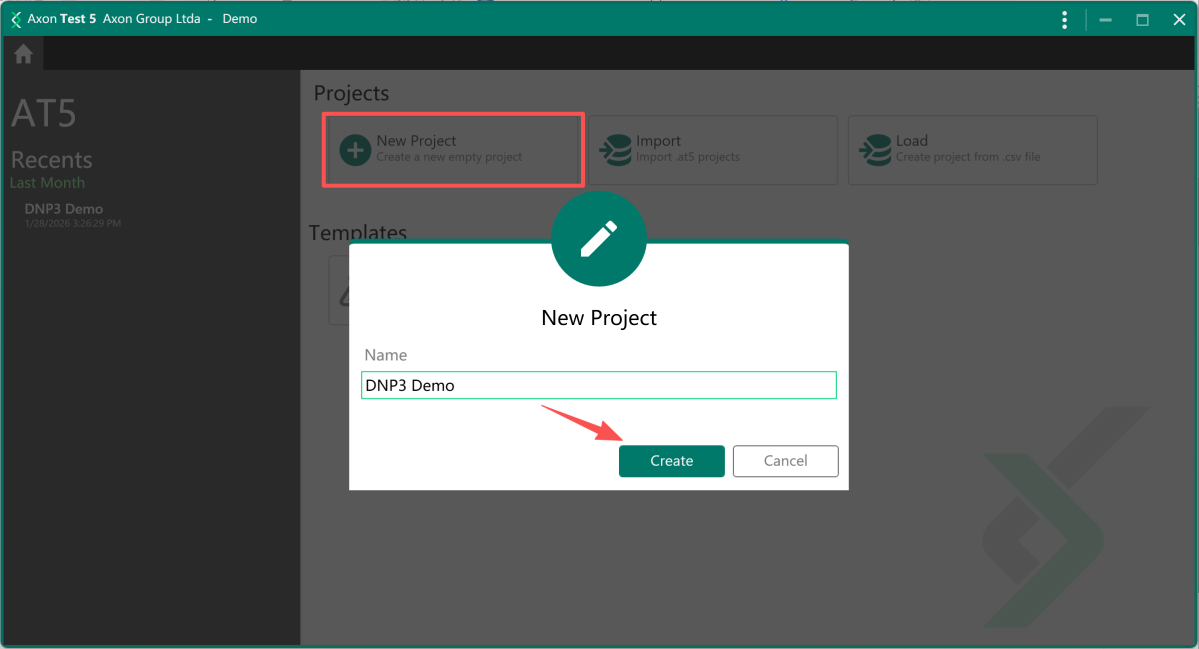
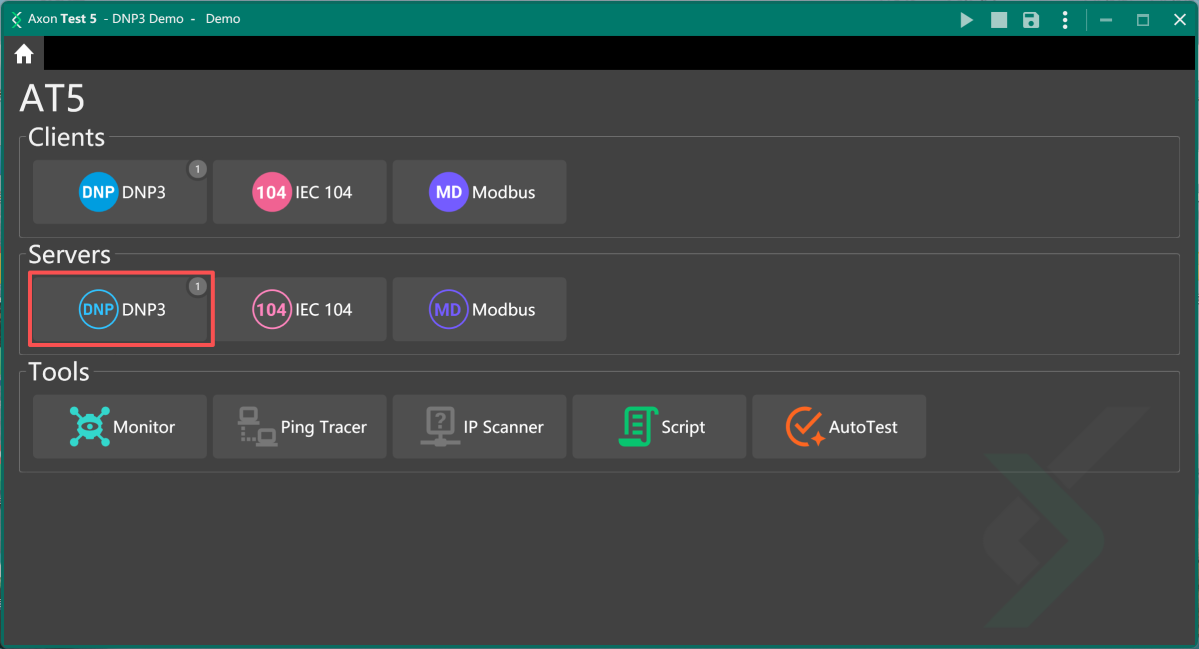
1. Create a Project: Open Axon Test 5, make a new empty project, and add a DNP3 server module for the outstation.
2. Set Up TCP Connection: Add a TCP channel with the default IP/port (0.0.0.0:20000) or customize it for your network. This channel is the primary link for DNP3 Data Collection between the simulator and gateway.
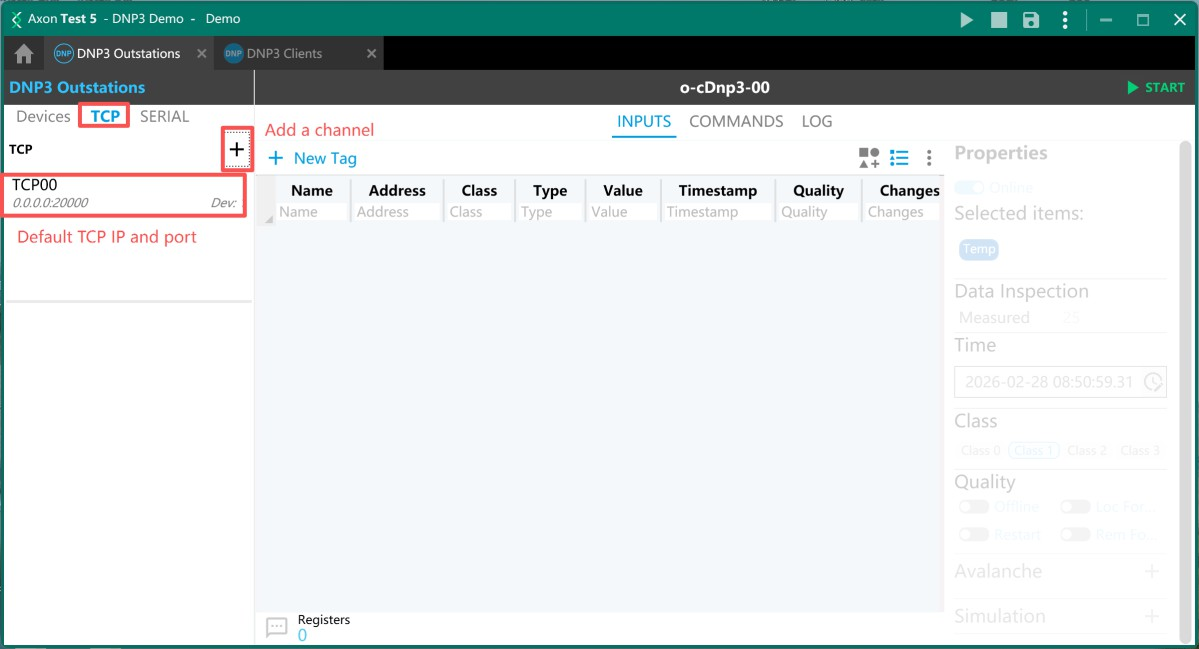
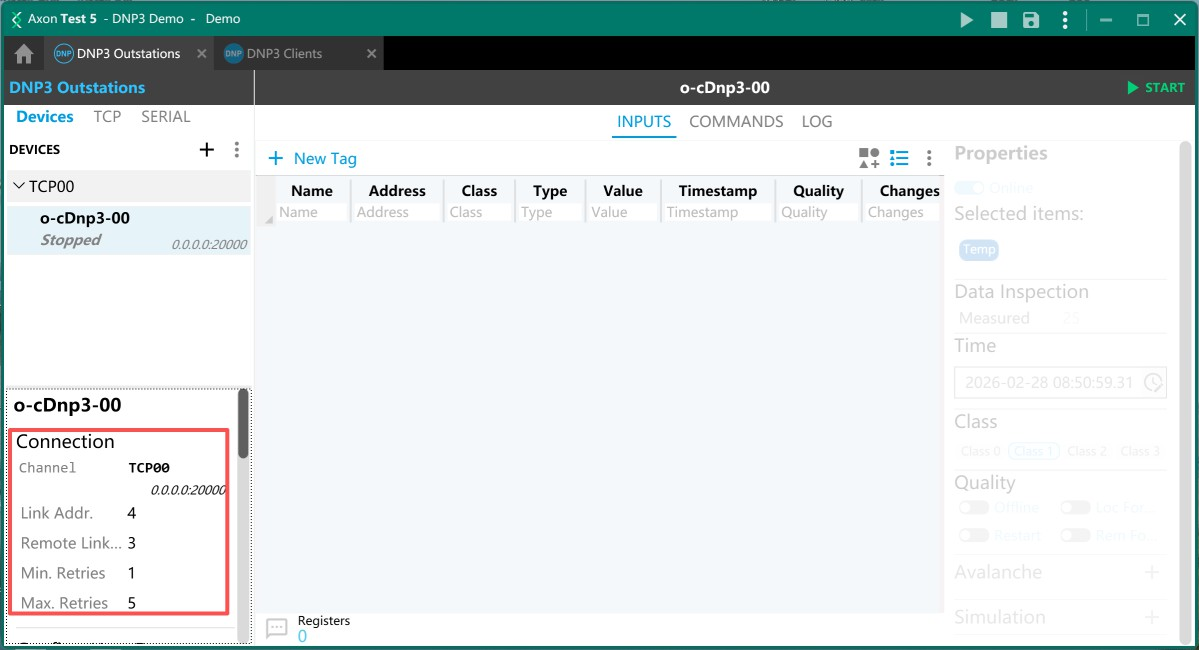
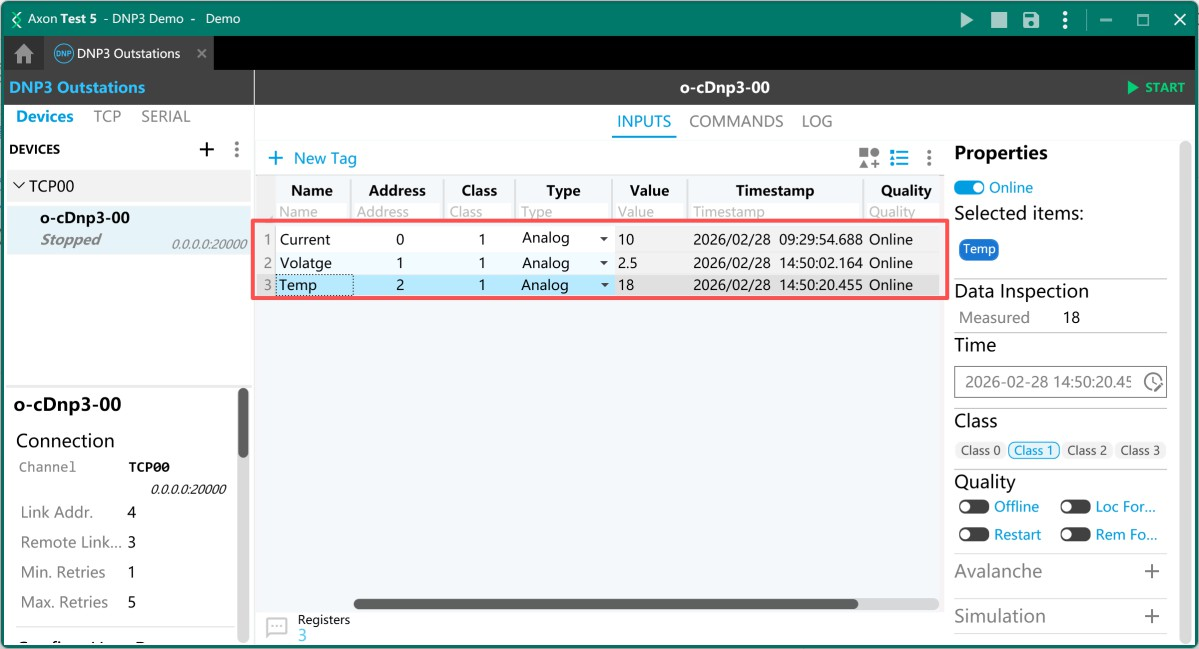
3. Add Data Tags: Click to add INPUT or COMMAND tags. For each tag, set a name and address (starting from 0). Then select the appropriate Group and Variation for your data type. Finally, assign an initial value and choose a Class priority (Class 1–3 for event-driven reporting).
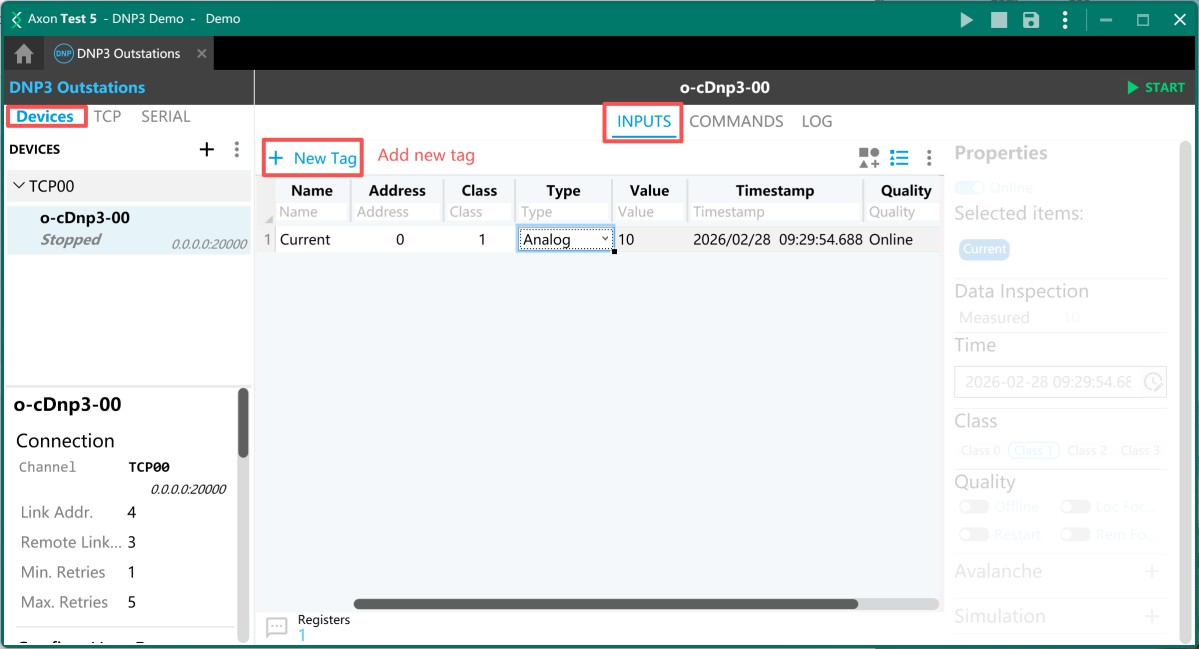
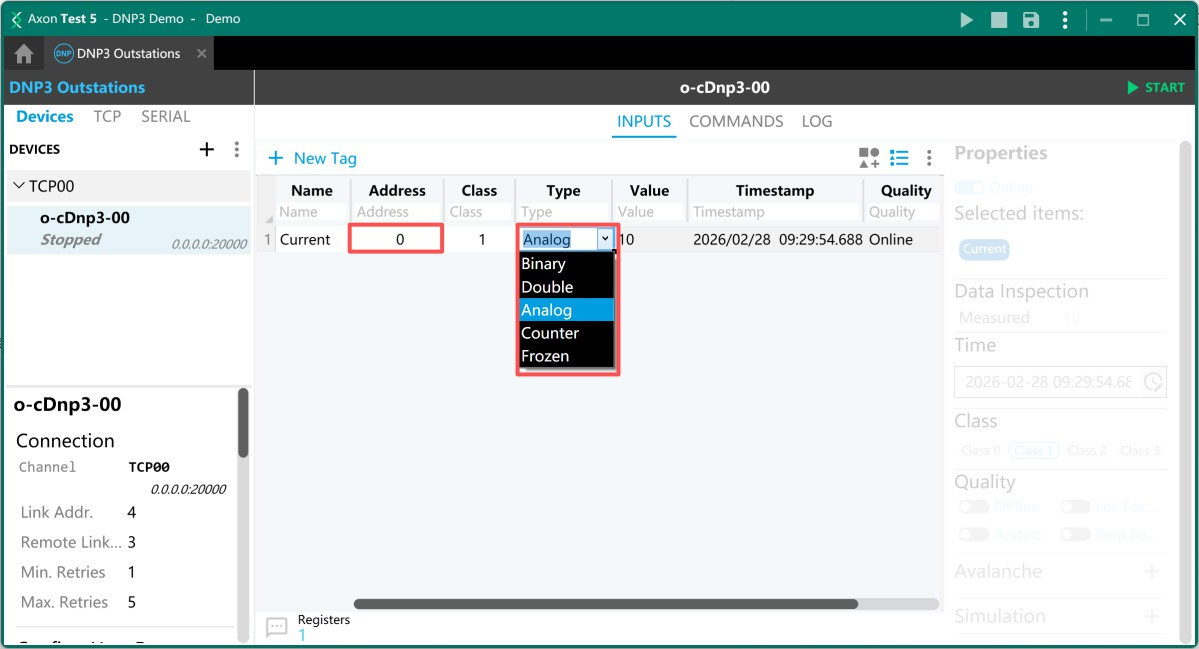
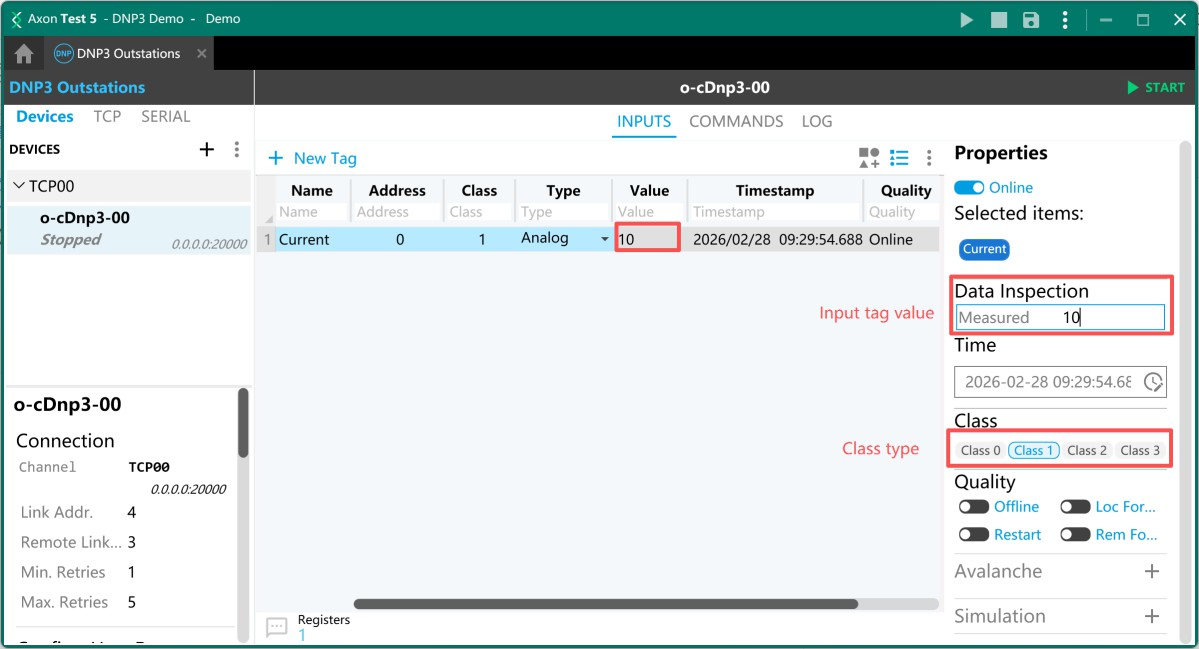
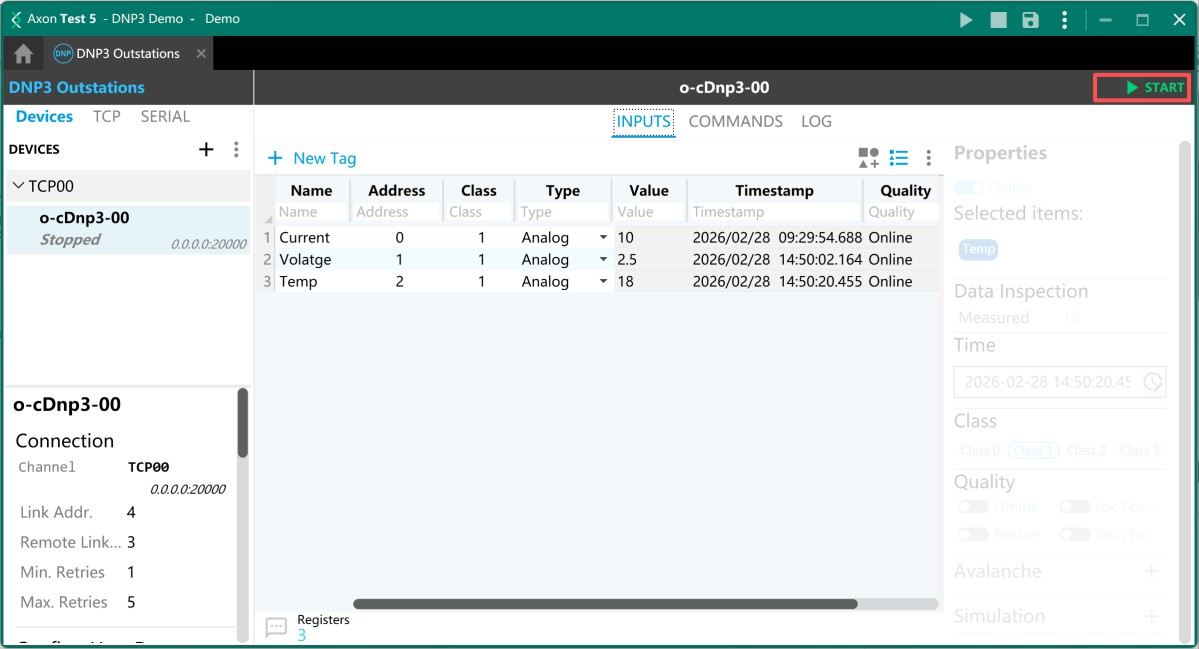
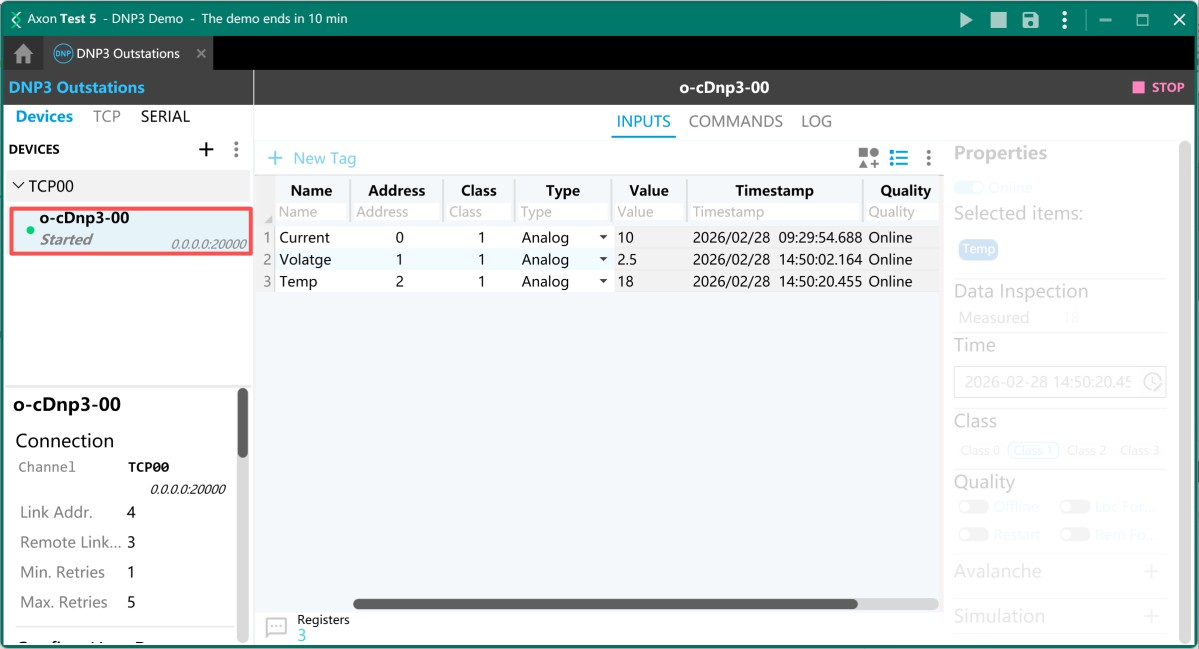
4. Start the Outstation: Click “Start”. The simulator status turns green, indicating your virtual DNP3 device is now running and ready to respond to master requests.
Understand Groups and Variations
In DNP3, there are different Groups and Variations based on IEEE Std 1815 rules. Group and Variation together define what data is being communicated and how it is encoded. They are the most basic identifiers for all data objects in DNP3.
- Group is a numbered classification that defines the type of data or object being transmitted, such as binary inputs, analog measurements, counters, control outputs, or device status indicators, essentially identifying what kind of information is being communicated between master and outstation devices.
- Variation is a sub-code under each Group that specifies the data format, structure, length, precision, and encoding method, including whether values are 16-bit or 32-bit, include status flags, use static or event-driven formats, or are optimized for bandwidth or accuracy, determining how the data is packaged and interpreted to ensure reliable and consistent communication across different manufacturers’ equipment.
There is a special Variation 0 in every group. Variation 0 is fully standardized and compliant for all DNP3 devices. Its core meaning is Any variation or No preferred format. When Variation 0 is used:
- Master(DNP3 Client): Uses Variation 0 in a request to indicate it accepts any valid variation under the target Group.
- Outstation(DNP3 Server): When receiving Variation 0, must respond using its configured default variation (not all variations)
⚠️Note: Variation 0 is only valid for read operations. It cannot be used for write operations (such as remote control or analog setpoint commands), where a specific Variation must be explicitly defined.
 "DNP3 Common Data Objects GroupVariation Quick Reference")
Step 2: Configure Bivocom TG465 Gateway
Then, set up the Bivocom TG465 gateway—the master station for DNP3 Data Collection—to connect to the simulated (or real) outstation, collect data, and transmit it to your cloud/SCADA platform.
1. Access the Web Interface & Verify Firmware
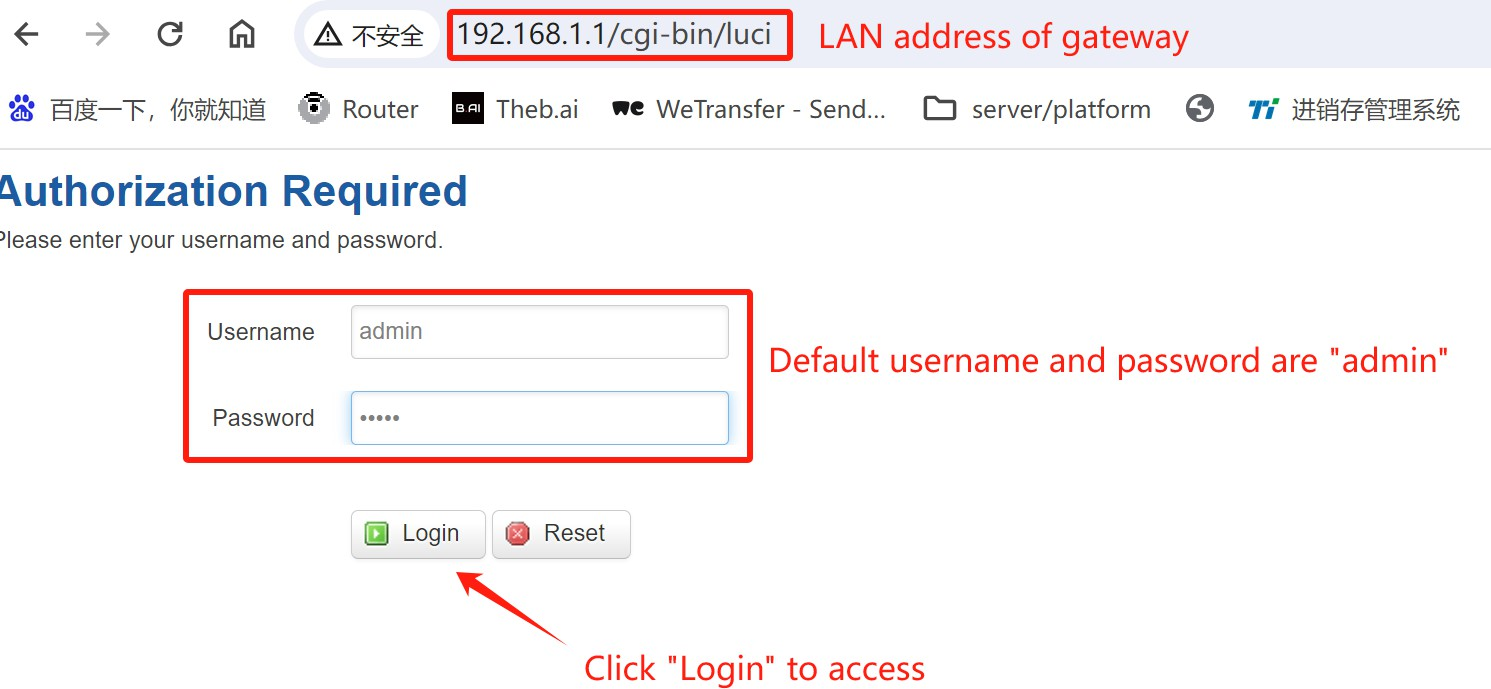
Login the gateway WEBUI through LAN IP, default username and password are admin .
First, navigate to the View > System, check “Firmware Update”.
Before configuring the gateway, you have to confirm the firmware version, make sure it’s DNP3 version. In this case, the firmware “65.1.0.8-3388-V1.0” is developed for TG465-Ubuntu system, which has DNP3 function. There is another special firmware “TG465-1.0.0.5-2634-V1.0” for TG465-OpenWRT system.
⚠️Note: If you don’t have the firmware, you can contact our technical engineer [email protected] to get the firmware img.
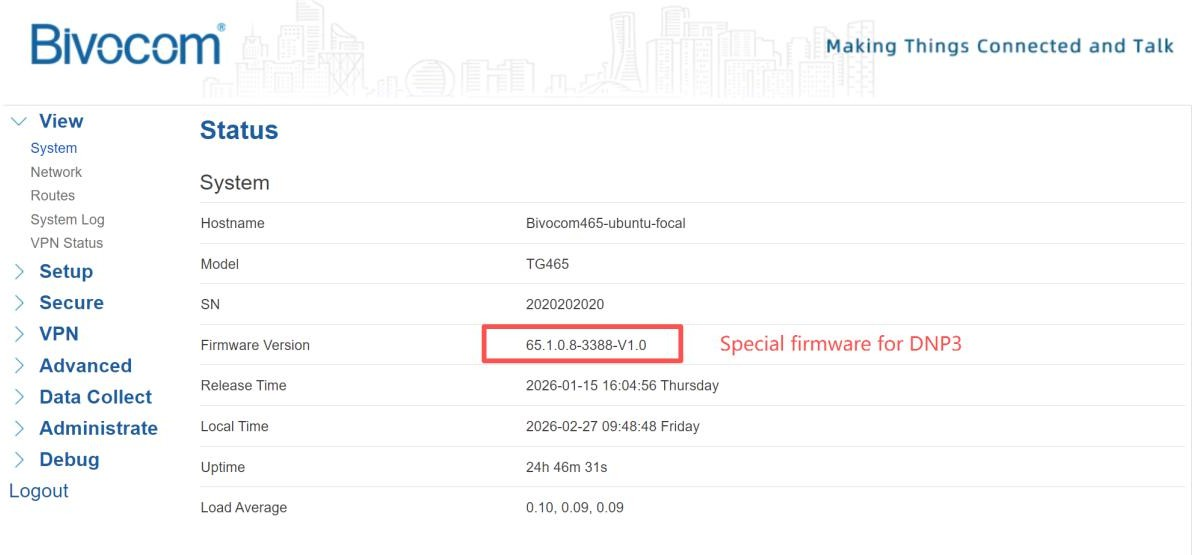
2. Enable Data Collection
Navigate to the Data Collect > Basic Setting, and enable “Data Collect” feature. Set Collect and Report Period according to your application. Then click “Save&Apply” to apply the configuration.
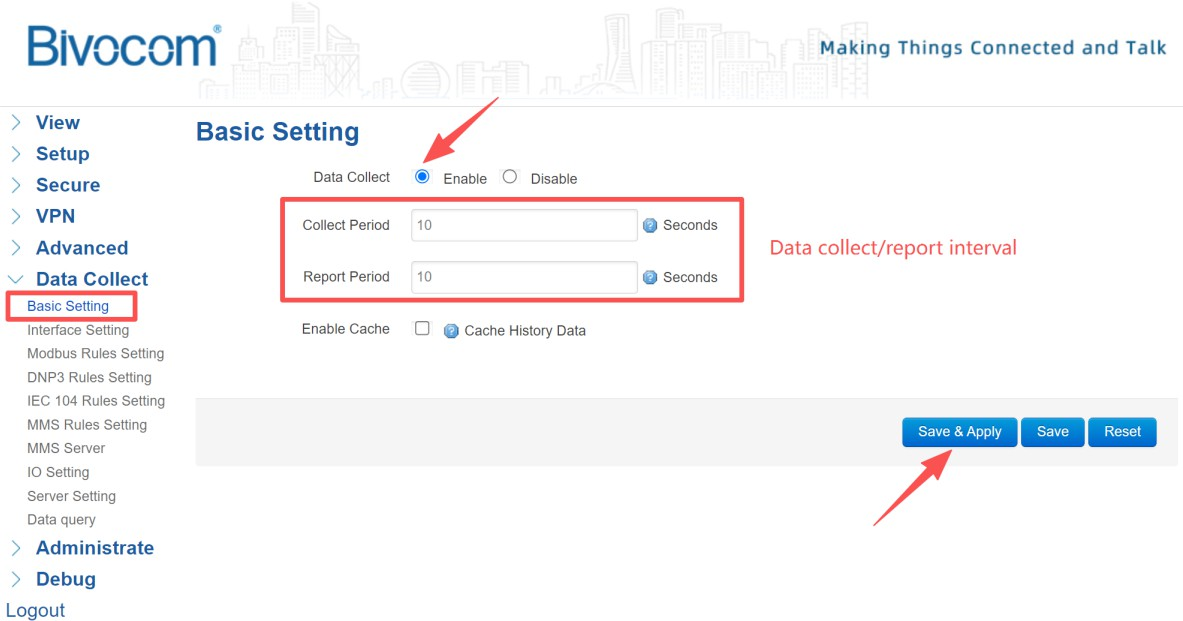
3. Configure TCP Connection to Outstation
Go to Interface Setting > TCP Device Setting, enable one TCP device.
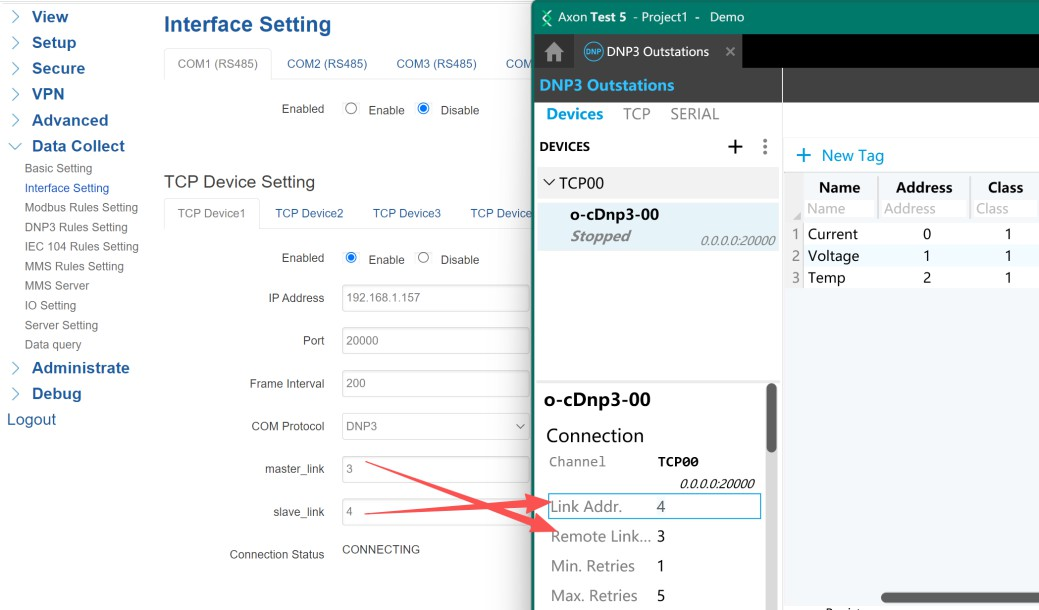
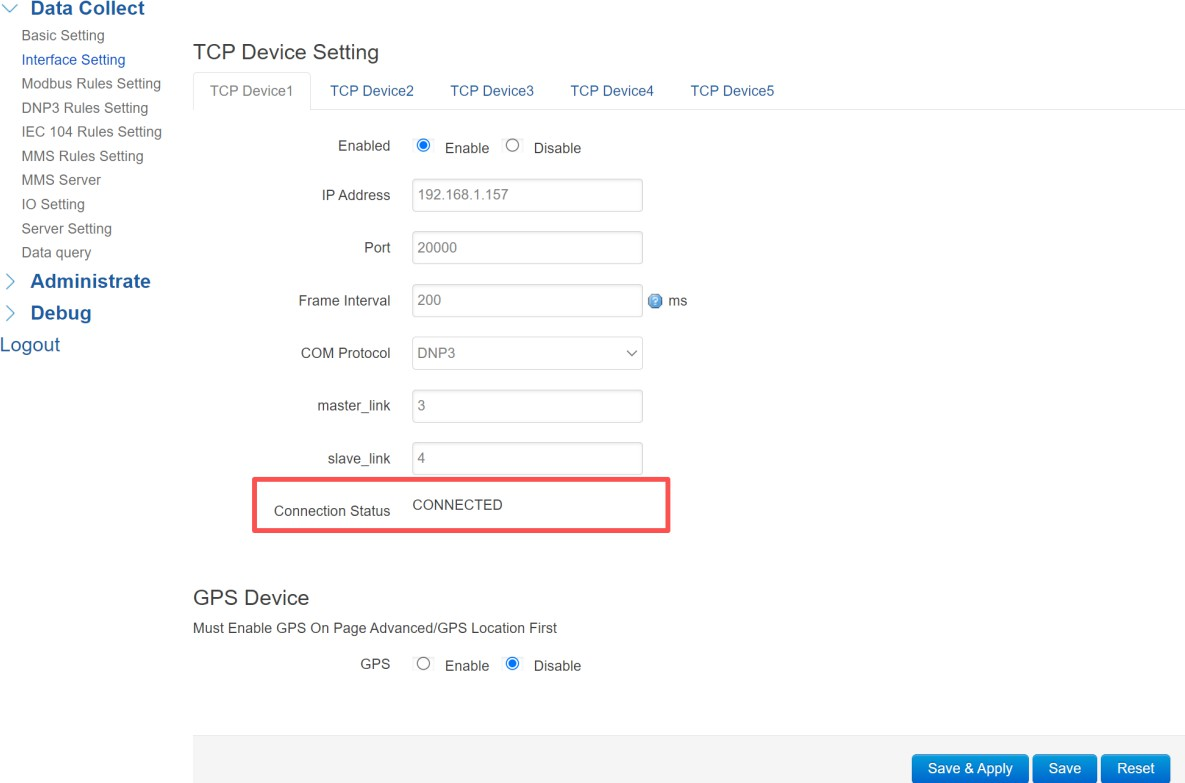
Enter the outstation’s IP address and port. I set as “192.168.1.157” which is my localhost PC IP in this case. Keep “Frame Interval” as default 200 ms. Select “COM Protocol” as “DNP3”. Set the “master_link” and “slave_link” according to the Axon configuration. Click “Save&Apply” after setup all parameters. If the connection is established successfully, it’ll change to “CONNECTED”.
- master_link: Local link address
- slave_link: Remote link address (match Axon settings)
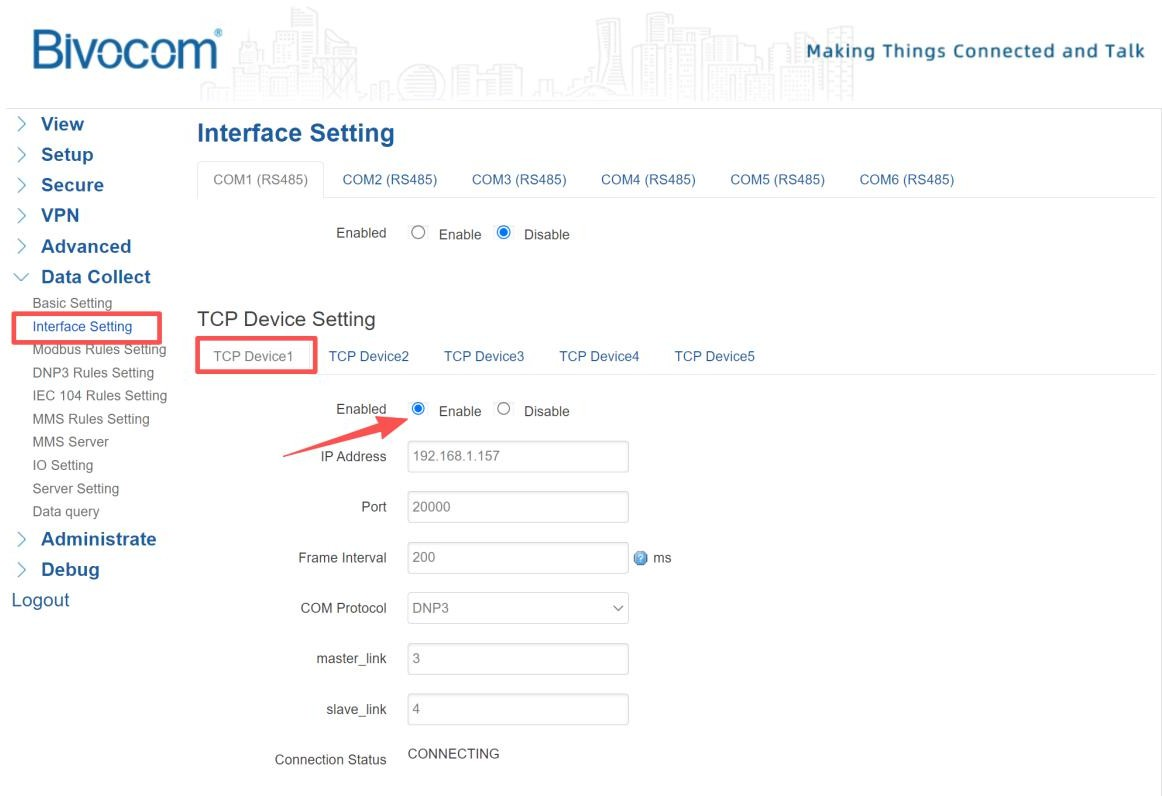
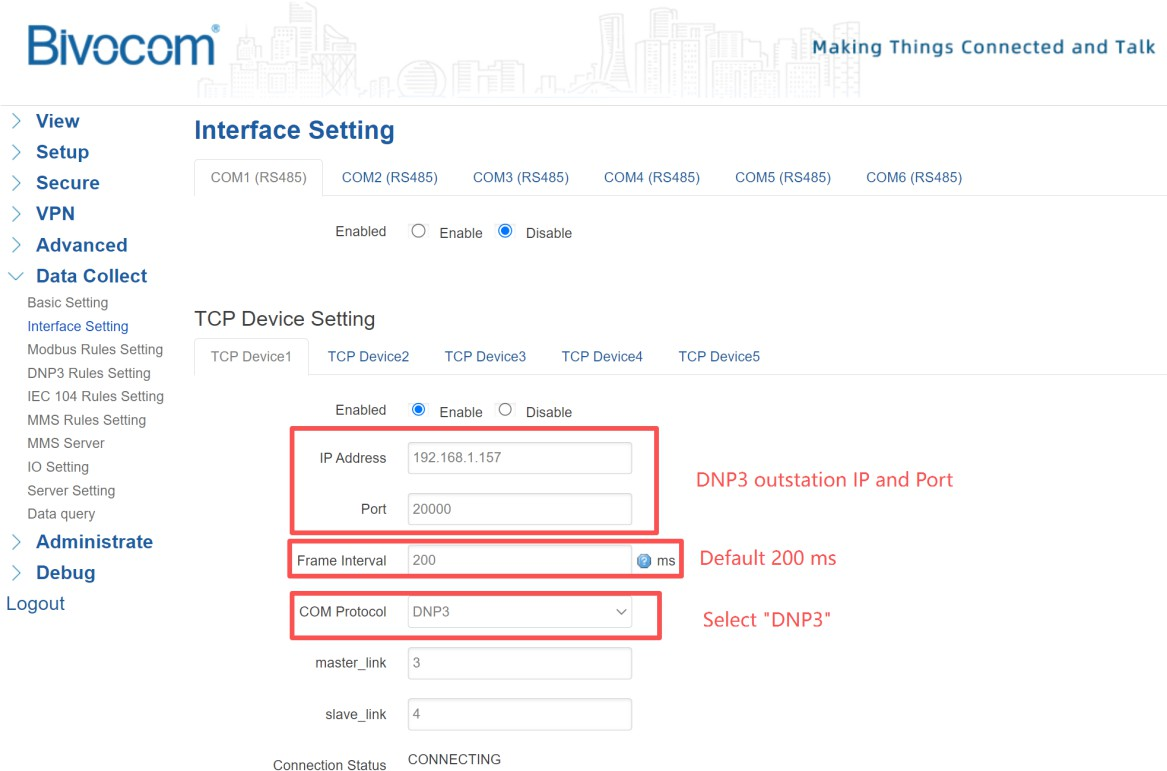
4. Set Up DNP3 Collection Rules
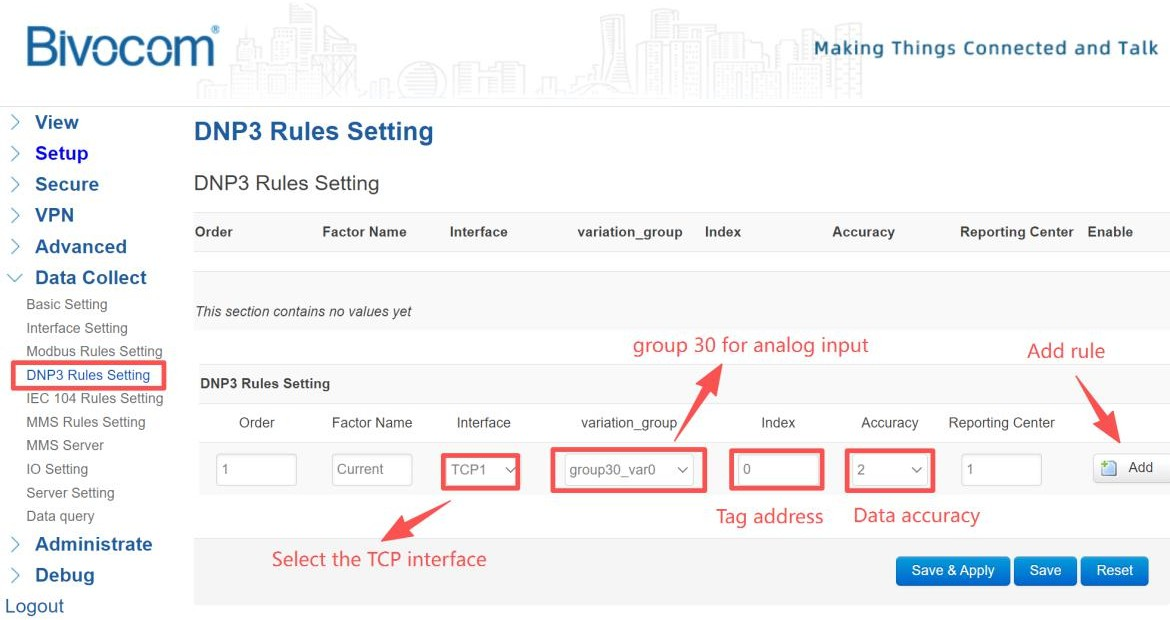
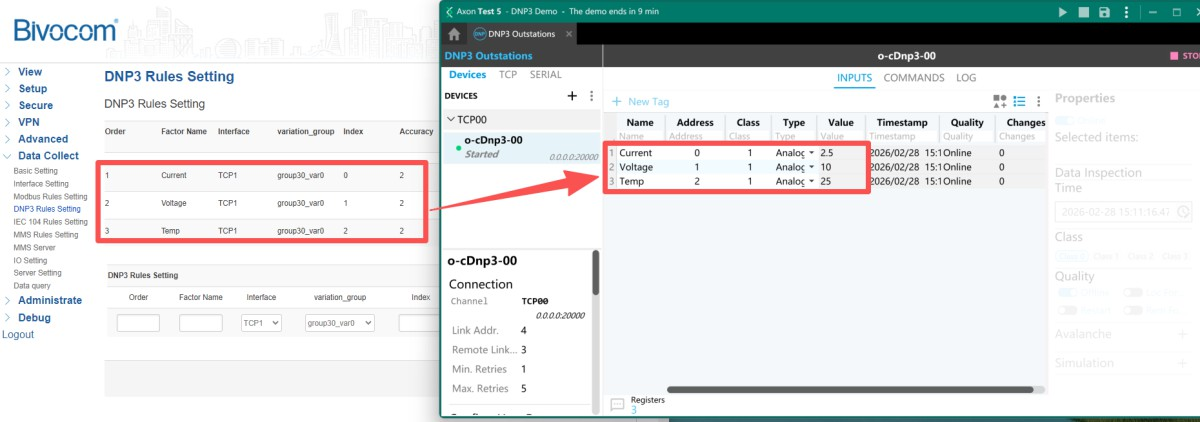
Go to DNP3 Rules Setting to define how the gateway collects specific data points—this step maps the outstation’s tags to the gateway’s DNP3 Data Collection logic. Click Add for each data point. Select the specific TCP interface just enabled. Select a group type and variation. “Index” is the Tag address of Outstation. Select accuracy for this rule.
Add other rules according to your Outstation tag settings. Then click “Save&Apply” to apply the configuration.
⚠️Note: This firmware supports Group 30 (analog inputs) only. Need other groups? Contact us with your requirements—we can evaluate custom firmware options.
5. Configure Data Upload (MQTT Example)
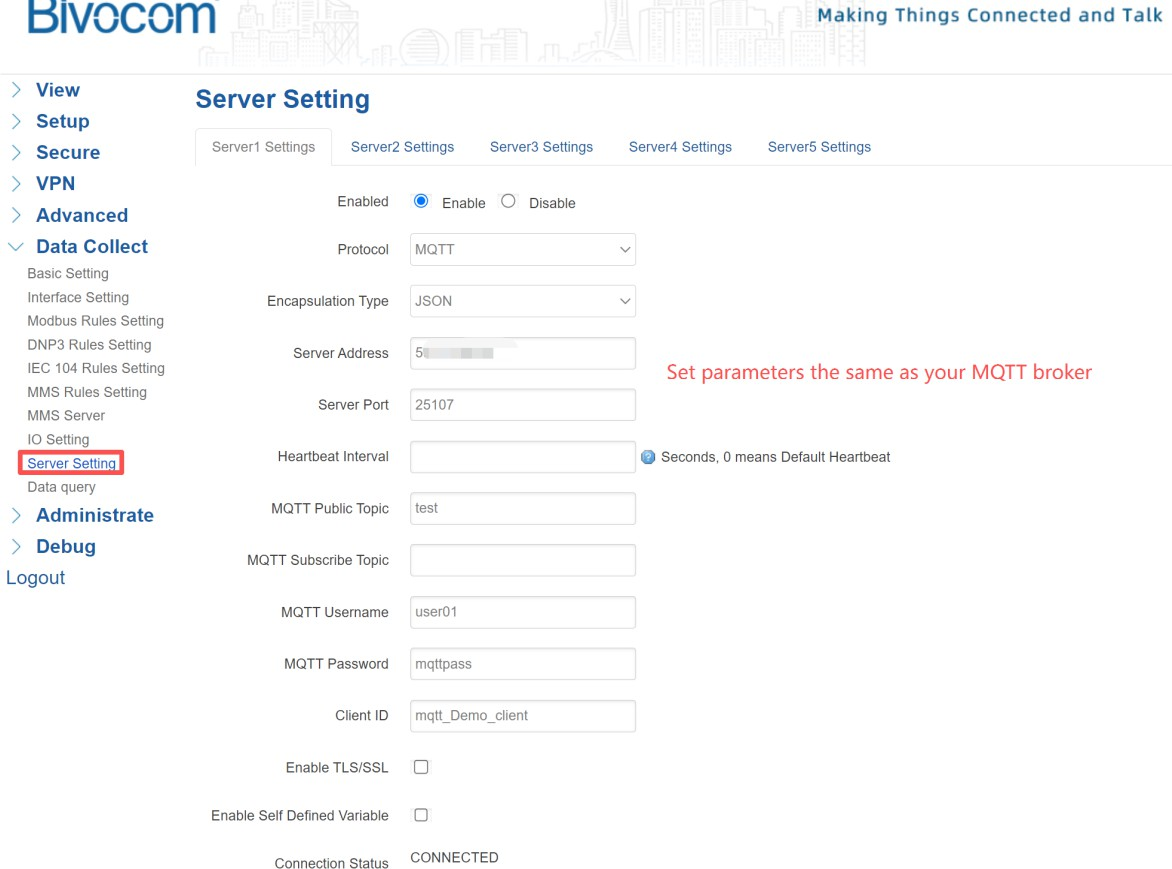
Go to Server Setting, Enable the MQTT server protocol. Set connection parameters according to your MQTT broker. Click “Save&Apply” after setup all parameters.
Step 3: Verify Data Collection
After all configuration steps, validate your DNP3 Data Collection setup to ensure the gateway is collecting and transmitting data correctly—this step confirms the end-to-end workflow for SCADA operations.
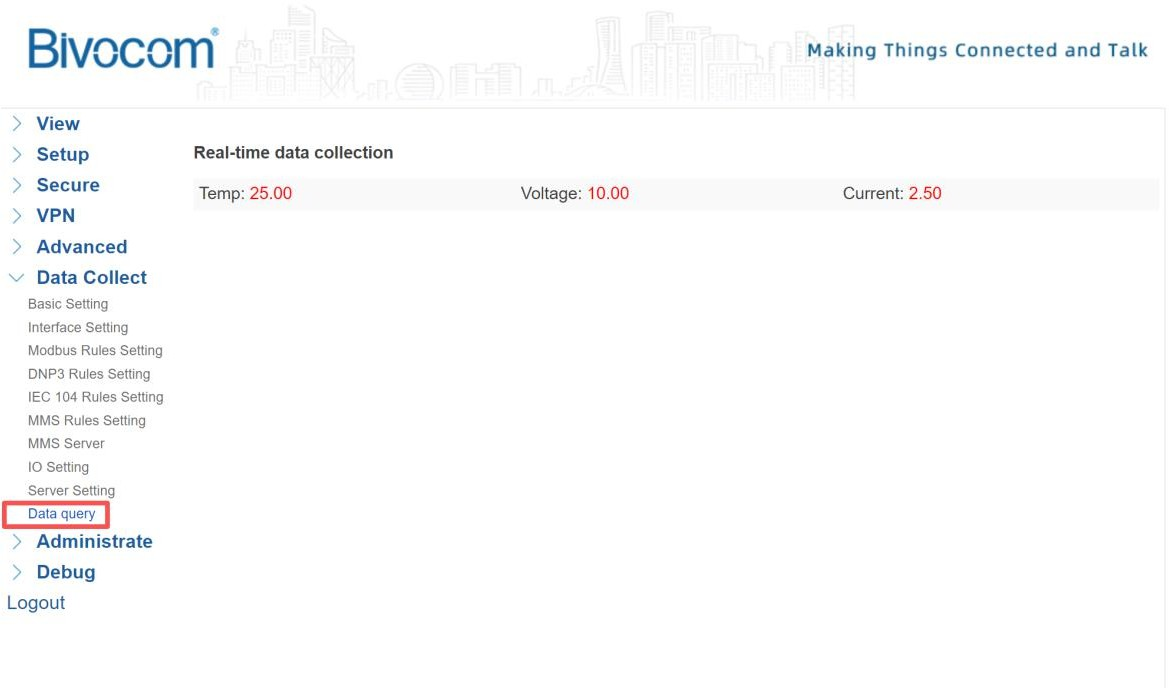
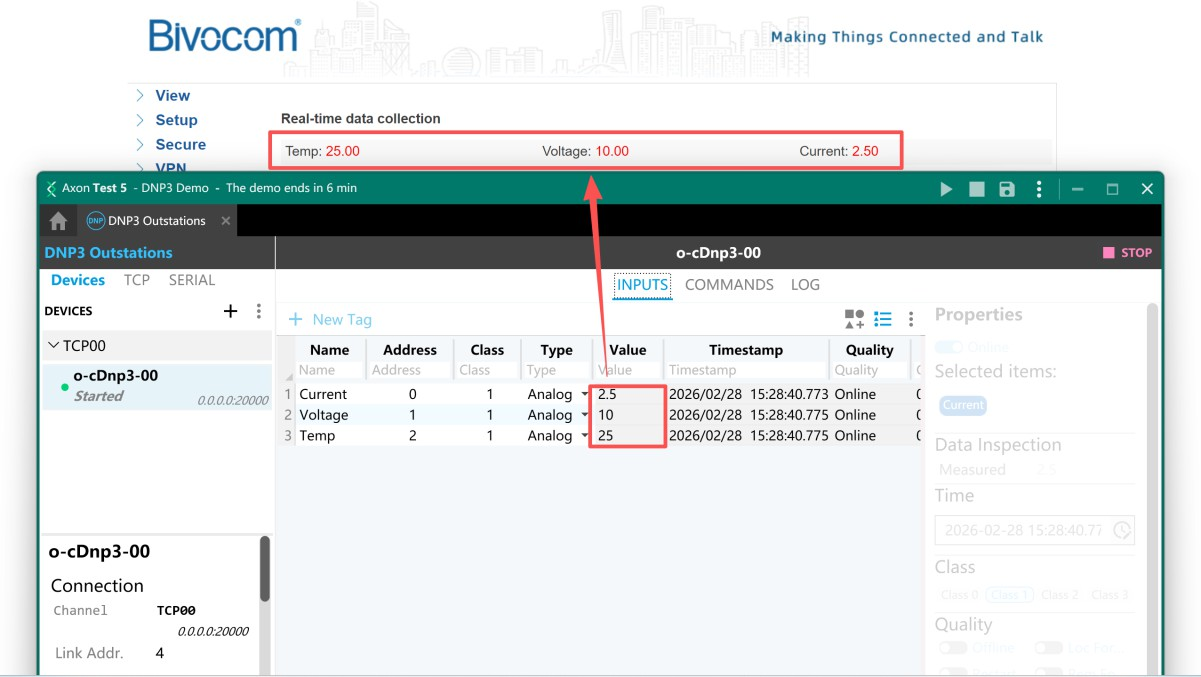
- Check Real-Time Data: Go to Data query, here you can monitor the real-time data collection from Axon DNP3 Outstation. This tab shows real-time values that match the Axon simulator’s tags, confirming successful DNP3 Data Collection.


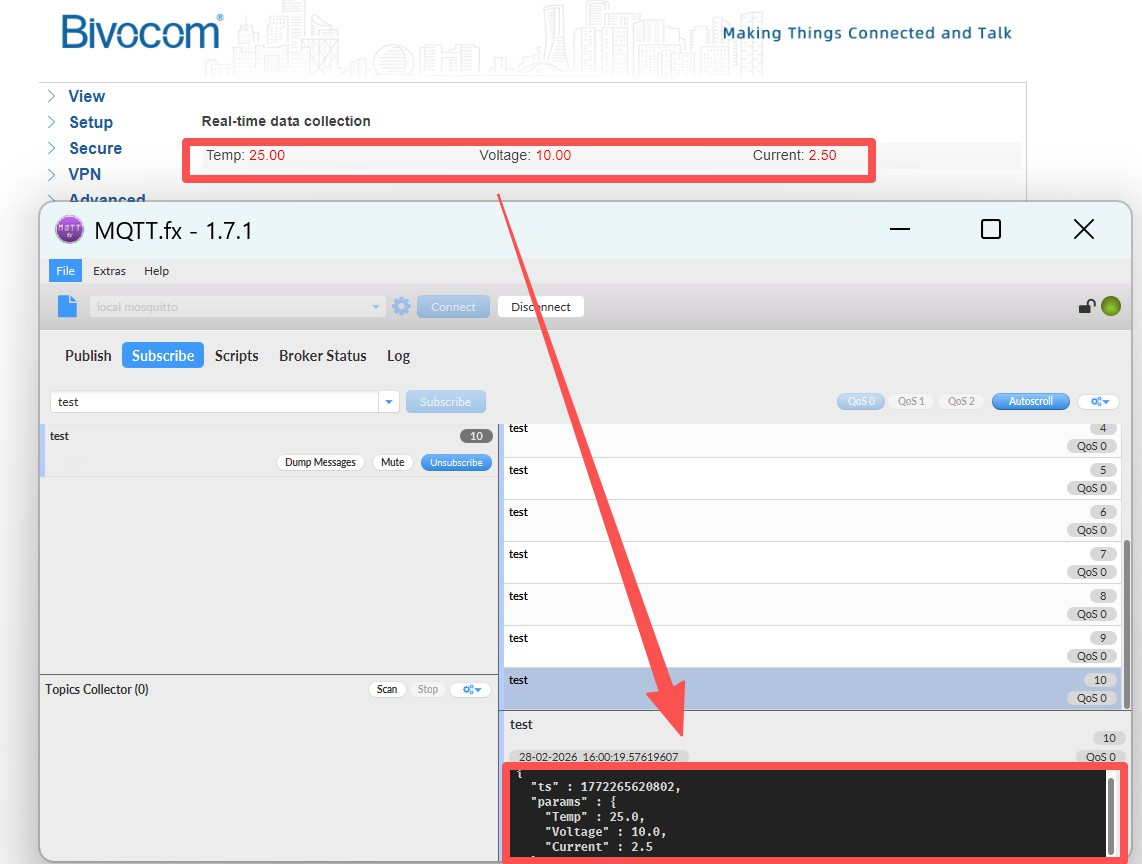
- Validate Cloud Transmission: In the above steps, I enabled a MQTT server, so I can subscribe topic from my gateway for gathering real-time DNP3 data.
Step 4: Troubleshoot with Logs
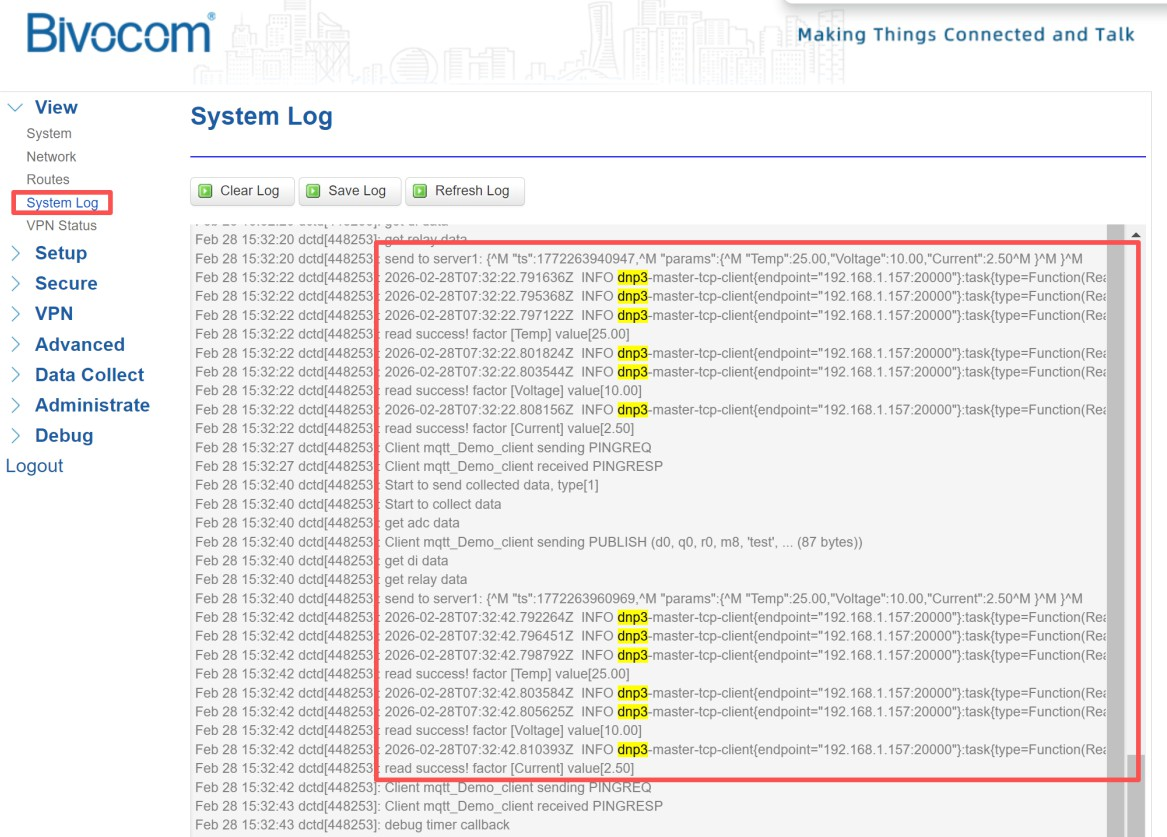
Navigate to the View > System Log, and search for “DNP3” to view error messages or connection issues. The log shows real-time activity for DNP3 Data Collection, including data send/receive events. Common issues:
- Connection refused → Check IP, port, and outstation status
- No data → Verify Group/Variation and Index mapping
- Timeout → Check network and frame interval settings
Video Tutorial
For a complete visual walkthrough, watch our step-by-step video:
Professional Support & Services
Bivocom combines decades of industrial IoT engineering with a deep understanding of DNP3 deployments.We deliver rugged industrial gateways with native DNP3 master support and custom firmware options—building a stable foundation for seamless DNP3-to-cloud integration across power grids, water systems, and oil-gas networks. Whether you are deploying to one site or scaling across hundreds of sites, our approach centers on three priorities:
- Expert Technical Guidance: Direct setup help and troubleshooting for reliable data flow.
- Tailored Integration Solutions: Tailored adaptations for specific protocols and challenging environments.
- Comprehensive Resource Hub: Step-by-step guides and configuration templates for faster deployment.
Ready to build reliable, scalable DNP3 Data Collection?
Contact [email protected] for a personalized consultation. At Bivocom, no more than connectivity—we build the foundation for a safer, smarter, and more resilient critical infrastructure. Together, let’s make the grid, the water, and the energy systems of tomorrow work smarter for everyone.
-on-Bivocom-TG465-IoT-Edge-AI-Gateway-with-Ubuntu-768x512.png "Install Ollama & Llama (LLM, large language model)) on Bivocom TG465 IoT Edge AI Gateway with Ubuntu")



Comment